> ## Documentation Index
> Fetch the complete documentation index at: https://koreai-ai-for-process-dev.mintlify.app/llms.txt
> Use this file to discover all available pages before exploring further.
# Quality AI General Settings
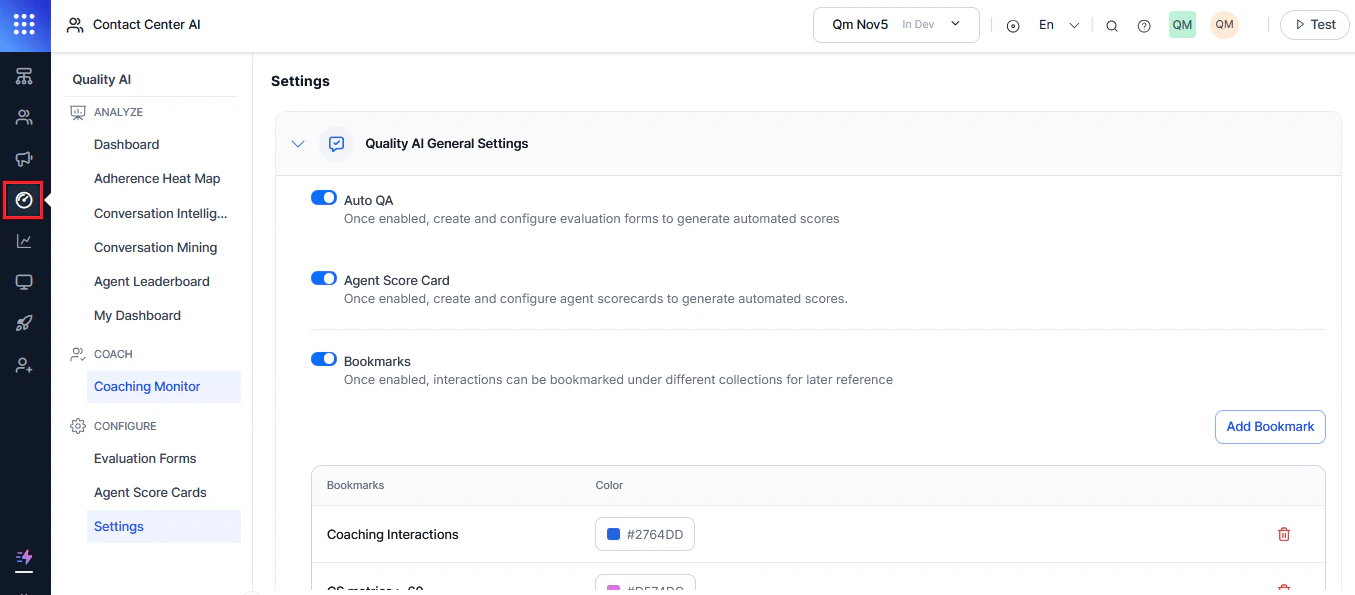
Quality AI General Settings lets you configure features that enhance agent performance and maintain compliance. You can manage Auto QA scoring, agent access to interactions, and auditor anonymity at the app level.
Navigate to **Quality AI** > **CONFIGURE** > **Settings** > **Quality AI General Settings**.
 ***
## Auto QA
Auto QA enables automated evaluation using configured forms. When disabled, automated QA scores, Conversation Mining, Dashboards, and Evaluation Forms are hidden.
### Enable Auto QA
1. Expand **Quality AI General Settings**.
***
## Auto QA
Auto QA enables automated evaluation using configured forms. When disabled, automated QA scores, Conversation Mining, Dashboards, and Evaluation Forms are hidden.
### Enable Auto QA
1. Expand **Quality AI General Settings**.
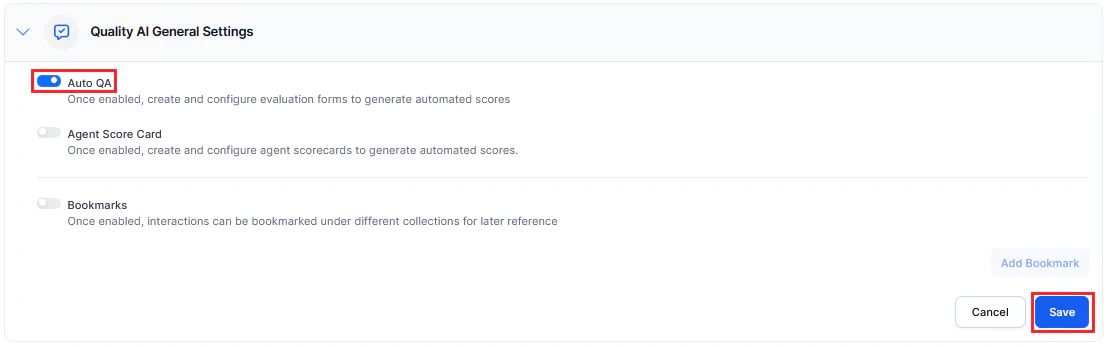 2. Toggle on **Auto QA**.
3. Select **Save**.
**When Auto QA is enabled, you can access:**
* Dashboards (Fail Statistics, Performance Monitor)
* Adherence Heatmap
* Conversation Mining
* Agent Leaderboard
* Coaching Monitor
* Evaluation Forms and Metrics
Only administrators can enable Auto QA. It is off by default. Disabling Auto QA hides Agent Scorecards and bookmarks, regardless of user permissions. Auto QA operates independently of Conversation Intelligence — you can enable either one without the other.
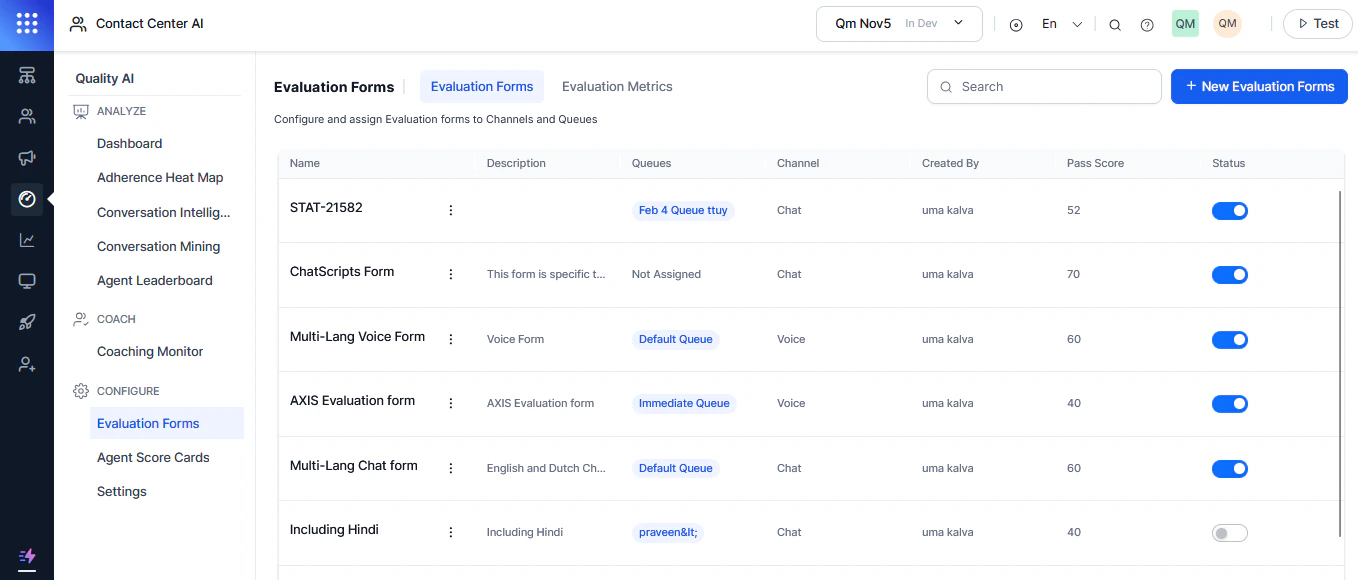
After enabling, you can create and configure evaluation forms:
2. Toggle on **Auto QA**.
3. Select **Save**.
**When Auto QA is enabled, you can access:**
* Dashboards (Fail Statistics, Performance Monitor)
* Adherence Heatmap
* Conversation Mining
* Agent Leaderboard
* Coaching Monitor
* Evaluation Forms and Metrics
Only administrators can enable Auto QA. It is off by default. Disabling Auto QA hides Agent Scorecards and bookmarks, regardless of user permissions. Auto QA operates independently of Conversation Intelligence — you can enable either one without the other.
After enabling, you can create and configure evaluation forms:
 ### Disable Auto QA
1. Toggle off **Auto QA**.
2. Select **Confirm**, then **Save**.
Disabling Auto QA turns off automated scoring across the entire app and all queues.
***
## Agent Score Card
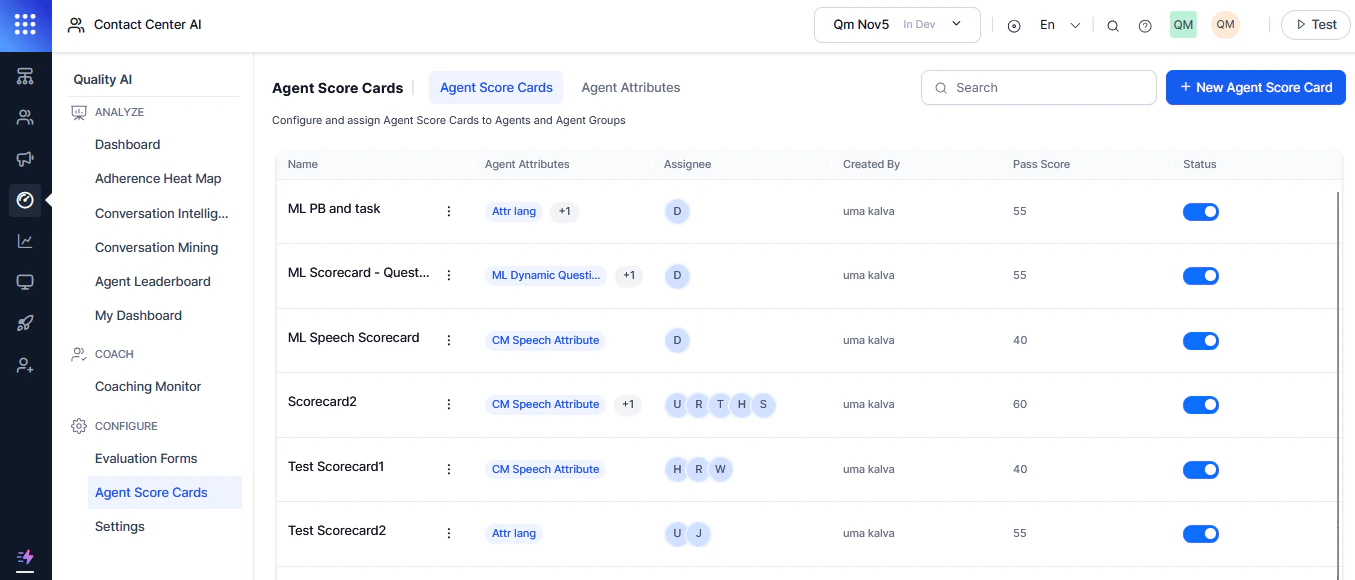
Agent Scorecards enable scoring at the agent level using evaluation forms.
### Enable Agent Score Card
1. Expand **Quality AI General Settings**.
### Disable Auto QA
1. Toggle off **Auto QA**.
2. Select **Confirm**, then **Save**.
Disabling Auto QA turns off automated scoring across the entire app and all queues.
***
## Agent Score Card
Agent Scorecards enable scoring at the agent level using evaluation forms.
### Enable Agent Score Card
1. Expand **Quality AI General Settings**.
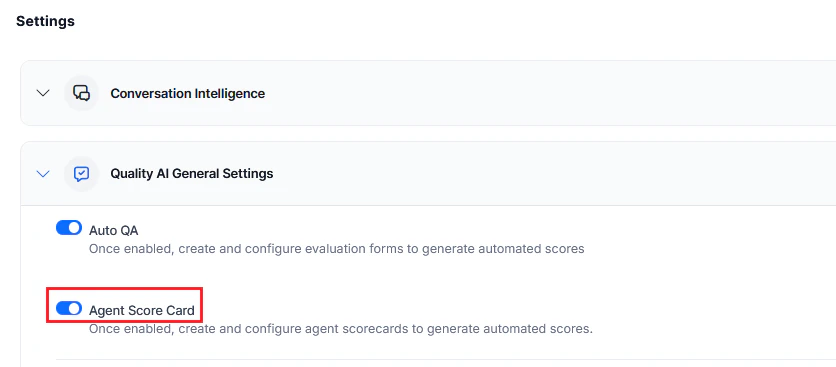 2. Toggle on **Agent Score Card**.
3. Select **Save**.
**When enabled, you can access:** Agent Leaderboard, Dashboard (Fail Statistics, Performance Monitor, Agent Leaderboard), Coaching Monitor, and Agent Scorecards.
2. Toggle on **Agent Score Card**.
3. Select **Save**.
**When enabled, you can access:** Agent Leaderboard, Dashboard (Fail Statistics, Performance Monitor, Agent Leaderboard), Coaching Monitor, and Agent Scorecards.
 ### Disable Agent Score Card
1. Toggle off **Agent Score Card**.
2. Select **Save**.
Disabling this feature disables automated agent scoring across the application and all queues.
***
## Bookmarks
Bookmarks let you tag interactions (calls, messages) for easy reference in Conversation Mining and dashboards.
### Enable Bookmarks
1. Expand **Quality AI General Settings**.
### Disable Agent Score Card
1. Toggle off **Agent Score Card**.
2. Select **Save**.
Disabling this feature disables automated agent scoring across the application and all queues.
***
## Bookmarks
Bookmarks let you tag interactions (calls, messages) for easy reference in Conversation Mining and dashboards.
### Enable Bookmarks
1. Expand **Quality AI General Settings**.
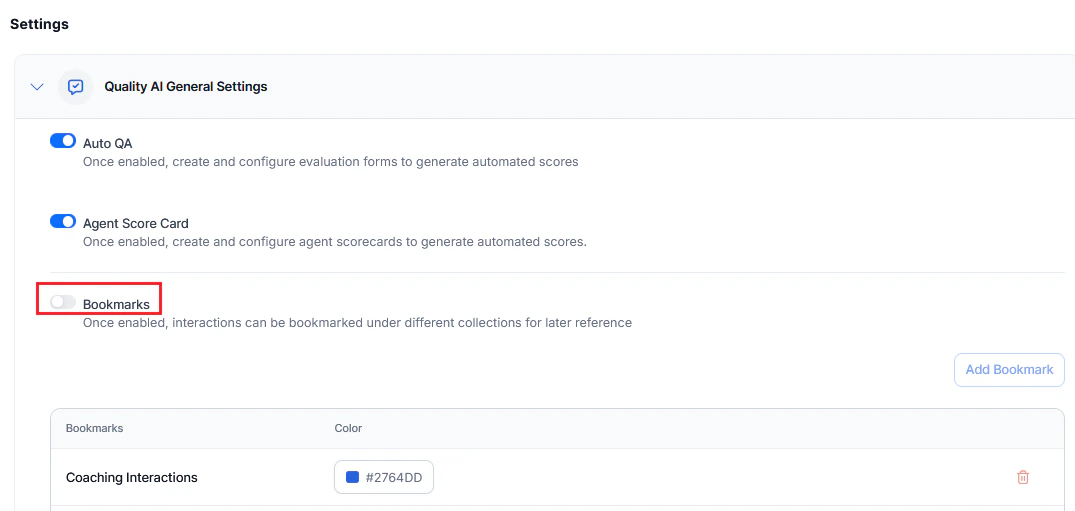 2. Toggle on **Bookmarks**. This makes bookmarks available in **Conversation Mining** (Interactions) and **Dashboard** > **Agent Leaderboard** (Evaluation).
3. Select **Add Bookmark**.
2. Toggle on **Bookmarks**. This makes bookmarks available in **Conversation Mining** (Interactions) and **Dashboard** > **Agent Leaderboard** (Evaluation).
3. Select **Add Bookmark**.
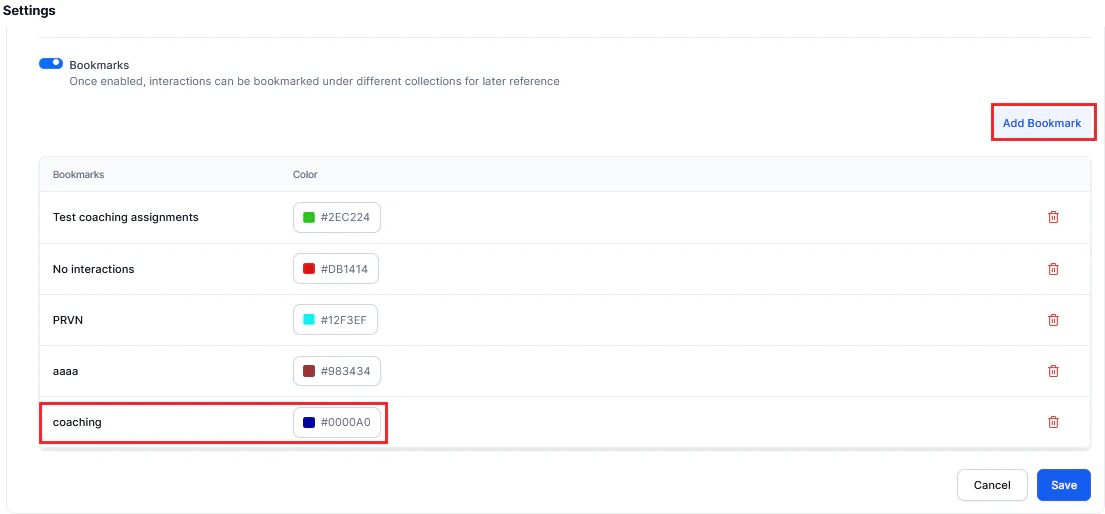 4. Enter a **Bookmark name**.
5. Select a **Color**.
6. Select **Save**.
### Disable Bookmarks
1. Toggle off **Bookmarks**.
2. Select **Confirm**, then **Save**.
Deleting a bookmark removes only the tag, not the associated interactions.
***
## Agent Access to Scored Interactions
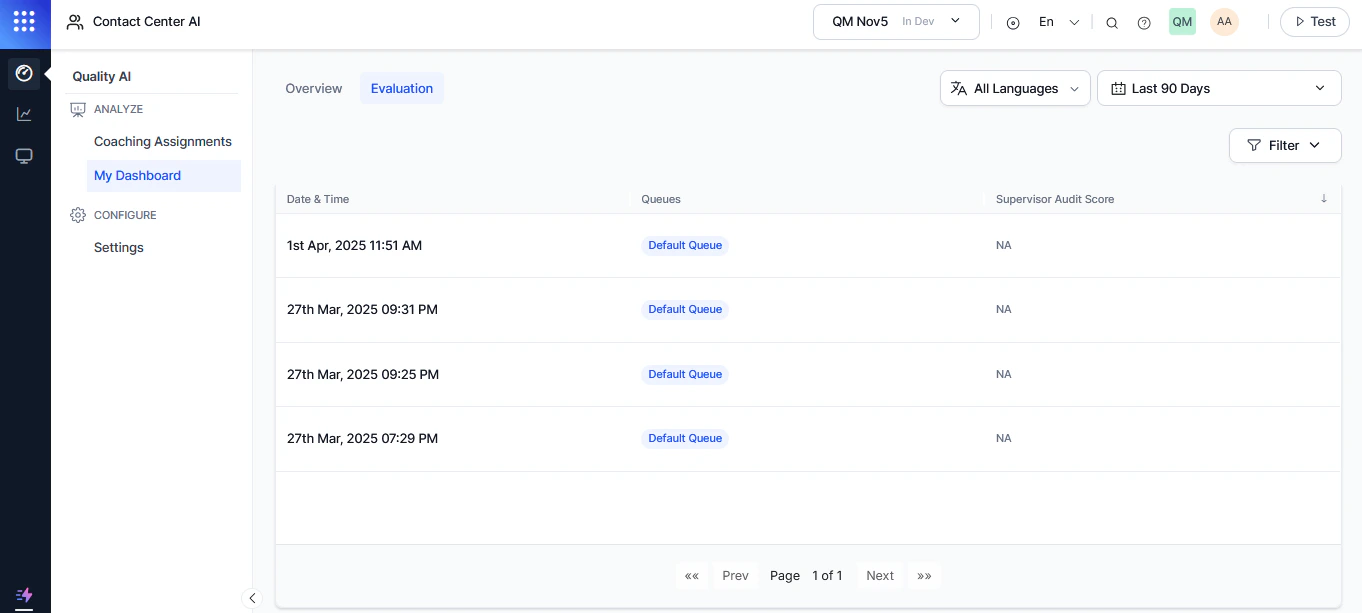
Controls which scored interactions agents can view to improve their performance. Off by default. When enabled, an **Evaluation** tab appears on the agent dashboard next to the **Overview** tab.
Access via **My Dashboard** > **Overview** > **Evaluation**.
4. Enter a **Bookmark name**.
5. Select a **Color**.
6. Select **Save**.
### Disable Bookmarks
1. Toggle off **Bookmarks**.
2. Select **Confirm**, then **Save**.
Deleting a bookmark removes only the tag, not the associated interactions.
***
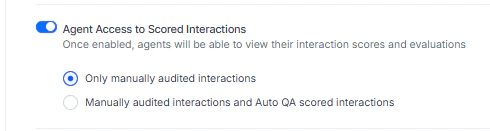
## Agent Access to Scored Interactions
Controls which scored interactions agents can view to improve their performance. Off by default. When enabled, an **Evaluation** tab appears on the agent dashboard next to the **Overview** tab.
Access via **My Dashboard** > **Overview** > **Evaluation**.
 **Access options:**
| Option | Description |
| --------------------------------------- | ------------------------------------------------------------------ |
| **Only manually audited interactions** | Agents see only supervisor-audited interactions |
| **Manually audited and Auto QA scored** | Agents see both Auto QA-scored and supervisor-audited interactions |
**Access options:**
| Option | Description |
| --------------------------------------- | ------------------------------------------------------------------ |
| **Only manually audited interactions** | Agents see only supervisor-audited interactions |
| **Manually audited and Auto QA scored** | Agents see both Auto QA-scored and supervisor-audited interactions |
 ***
## Agent Dashboard Insights
Controls whether agents can view Sentiment and Resolution metrics on their own dashboard.
| State | What agents see |
| ---------------------- | ------------------------------------------------------------------------------------------------------ |
| **Disabled (default)** | Standard dashboard only: coaching assignments, scorecards, and performance data |
| **Enabled** | Additional insights: sentiment trends, topic-level sentiment, resolution rates, and drill-down metrics |
***
## Agent Dashboard Insights
Controls whether agents can view Sentiment and Resolution metrics on their own dashboard.
| State | What agents see |
| ---------------------- | ------------------------------------------------------------------------------------------------------ |
| **Disabled (default)** | Standard dashboard only: coaching assignments, scorecards, and performance data |
| **Enabled** | Additional insights: sentiment trends, topic-level sentiment, resolution rates, and drill-down metrics |
 These insights mirror supervisor views but apply only to the agent's own conversations.
***
## AI Justification and Evidence
When enabled, agents can view AI-generated justifications and supporting evidence for each question and metric. Details are shown by question, value, and AI Agent metric type so agents understand how scores are calculated.
***
## Audit Settings
Controls agent visibility and privacy during audits:
| Setting | Description |
| ------------------------------------------------------------ | -------------------------------------------------------------------------------------------------------------------------------------- |
| **Allow agents to view AI-generated emotions and sentiment** | Agents can view emotional indicators and sentiment scores per interaction. When off, agents cannot access this data in the audit view. |
| **Hide Auditor Details for Agent** | Hides auditor identity from evaluated agents. When active, the system displays **Anonymous** instead of the auditor's name. |
***
## Manual Audit
Supervisors can enable additional metric types for comprehensive manual quality evaluations.
### Audit Speech Metrics
Provides speech analysis capabilities for quality assurance:
* If **By Speech** is on, auditors enter responses for each speech metric (clarity, tone, pace).
### Audit Playbook Metrics
Evaluates agent adherence to defined conversation playbooks:
* If **By Step** is on, auditors input responses step-by-step.
* If **Entire Playbook** is on, auditors use a consolidated evaluation interface.
**For non-audited interactions**, agents see a non-editable single status: Executed, Not Executed, or Not Applicable.
**For manually audited interactions**, agents can view only unselected radio buttons and the supervisor-selected response highlighted.
***
Built with [Mintlify](https://mintlify.com).
These insights mirror supervisor views but apply only to the agent's own conversations.
***
## AI Justification and Evidence
When enabled, agents can view AI-generated justifications and supporting evidence for each question and metric. Details are shown by question, value, and AI Agent metric type so agents understand how scores are calculated.
***
## Audit Settings
Controls agent visibility and privacy during audits:
| Setting | Description |
| ------------------------------------------------------------ | -------------------------------------------------------------------------------------------------------------------------------------- |
| **Allow agents to view AI-generated emotions and sentiment** | Agents can view emotional indicators and sentiment scores per interaction. When off, agents cannot access this data in the audit view. |
| **Hide Auditor Details for Agent** | Hides auditor identity from evaluated agents. When active, the system displays **Anonymous** instead of the auditor's name. |
***
## Manual Audit
Supervisors can enable additional metric types for comprehensive manual quality evaluations.
### Audit Speech Metrics
Provides speech analysis capabilities for quality assurance:
* If **By Speech** is on, auditors enter responses for each speech metric (clarity, tone, pace).
### Audit Playbook Metrics
Evaluates agent adherence to defined conversation playbooks:
* If **By Step** is on, auditors input responses step-by-step.
* If **Entire Playbook** is on, auditors use a consolidated evaluation interface.
**For non-audited interactions**, agents see a non-editable single status: Executed, Not Executed, or Not Applicable.
**For manually audited interactions**, agents can view only unselected radio buttons and the supervisor-selected response highlighted.
***
Built with [Mintlify](https://mintlify.com).