> ## Documentation Index
> Fetch the complete documentation index at: https://koreai-ai-for-process-dev.mintlify.app/llms.txt
> Use this file to discover all available pages before exploring further.
# Configuring the Shopify Action
[Back to Actions Integrations](/ai-for-service/integrations/overview#actions)
Connect Shopify to find information about customers, products, and orders. See [Shopify Documentation](https://www.shopify.com/in/blog/topics/guides) for more information.
***
## Authorizations Supported
The XO Platform supports basic authentication for Shopify. See [App Authorization Overview](../../../dev-tools/bot-authorization/bot-authentication.md) for details.
| Authorization Type | Basic Auth |
| ---------------------------------------- | ---------- |
| Pre-authorize the Integration | Yes |
| Allow Users to Authorize the Integration | Yes |
***
## Step 1: Enable the Shopify Action
**Prerequisites:**
* Create a custom app in the Shopify admin page.
* Authenticate the custom app by installing it.
* Generate API credentials and access tokens. See [Shopify custom apps](https://help.shopify.com/en/manual/apps/app-types/custom-apps).
* Configure the app with the following scopes:
* `read_orders`
* `read_products`
* `read_customers`
* Copy the **Admin API access token** and **Domain** from Shopify.
**Steps:**
1. Go to **App Settings** > **Integrations** > **Actions**.
2. Select **Shopify**.
### Pre-authorize the Integration
**Basic Auth**
1. Go to **App Settings** > **Integrations** > **Actions** and select **Shopify**.
2. In **Configurations**, select the **Authorization** tab.
3. Set **Authorization Type** to **Pre-authorize the Integration** > **Basic Auth**.
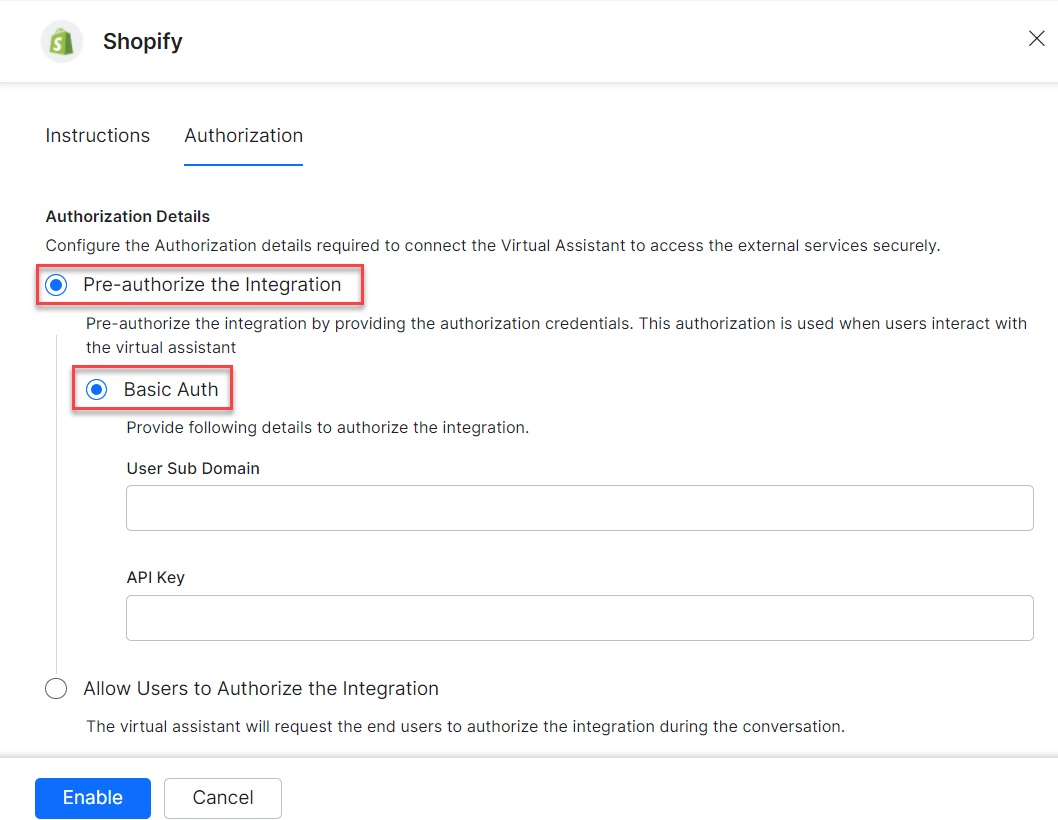 4. Enter the following details:
* **User Sub Domain** - The domain name of the Shopify account.
* **API Key** - The secret API key of your Shopify account.
5. Click **Enable**. The **Integration Successful** pop-up is displayed.
4. Enter the following details:
* **User Sub Domain** - The domain name of the Shopify account.
* **API Key** - The secret API key of your Shopify account.
5. Click **Enable**. The **Integration Successful** pop-up is displayed.
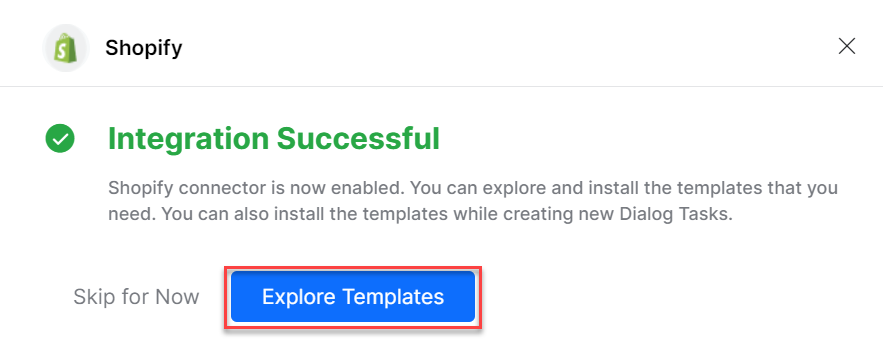 The Shopify action moves from *Available* to *Configured* after enabling.
### Allow End User to Authorize
1. Go to **App Settings** > **Integrations** > **Actions** and select **Shopify**.
2. In **Configurations**, select the **Authorization** tab.
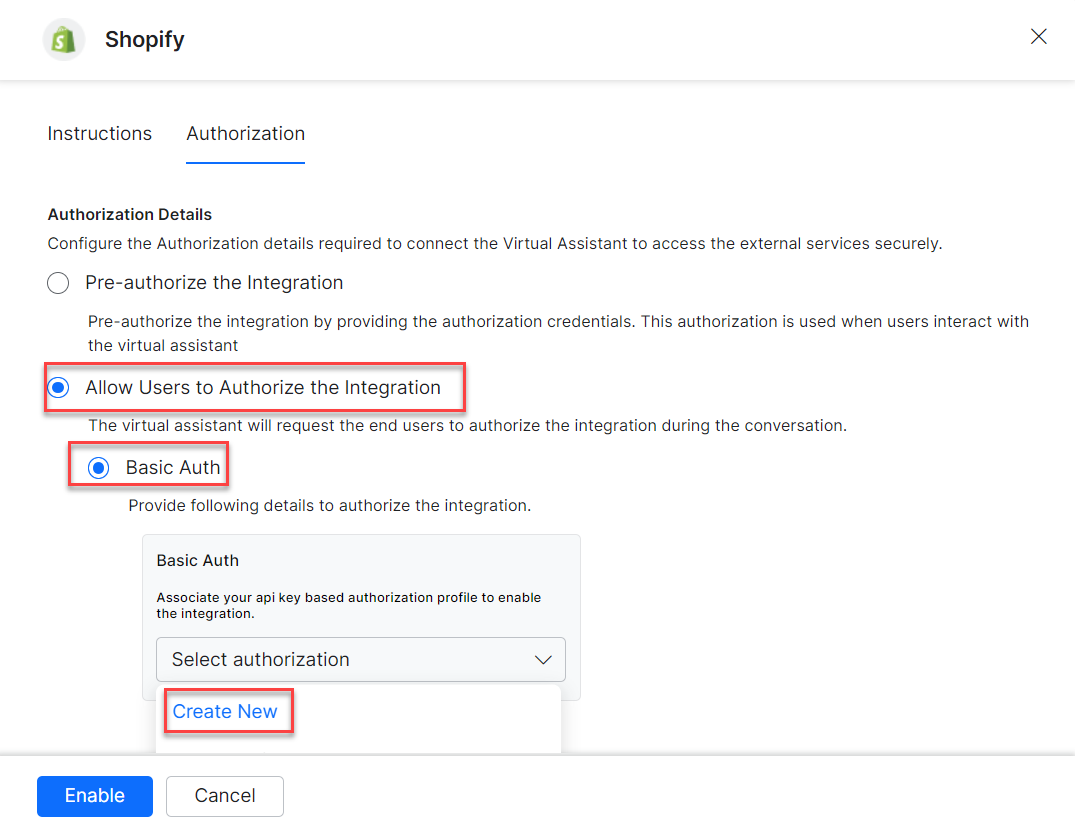
3. Set **Authorization Type** to **Allow Users to Authorize the Integration** > **Basic Auth**.
4. Click **Select Authorization** > **Create New**.
The Shopify action moves from *Available* to *Configured* after enabling.
### Allow End User to Authorize
1. Go to **App Settings** > **Integrations** > **Actions** and select **Shopify**.
2. In **Configurations**, select the **Authorization** tab.
3. Set **Authorization Type** to **Allow Users to Authorize the Integration** > **Basic Auth**.
4. Click **Select Authorization** > **Create New**.
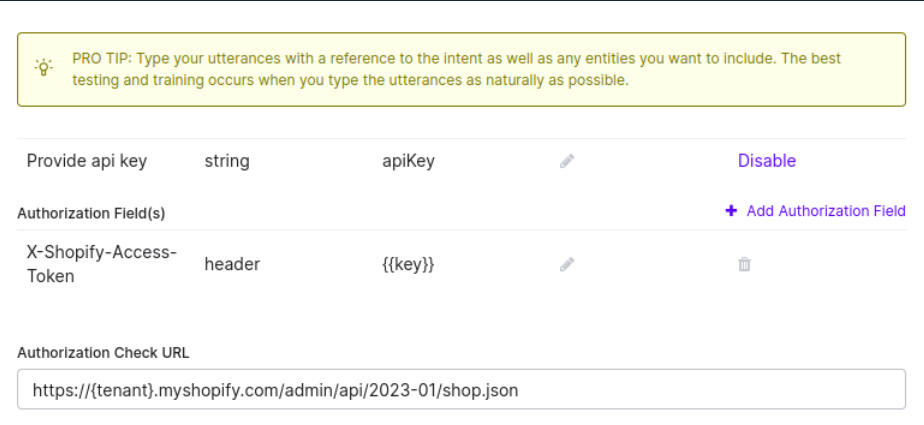
 5. Select **API Key** as the authorization mechanism. See [App Authorization Overview](../../../dev-tools/bot-authorization/bot-authentication.md).
6. Enter the following credentials:
* **Name** - Name for the Basic Auth profile.
* **Base URL** - Base tenant URL for the Shopify instance.
* **Authorization Check URL** - Authorization check URL for your Shopify instance.
* **Description** - Description of the profile.
* Click **Save Auth** to save the profile.
5. Select **API Key** as the authorization mechanism. See [App Authorization Overview](../../../dev-tools/bot-authorization/bot-authentication.md).
6. Enter the following credentials:
* **Name** - Name for the Basic Auth profile.
* **Base URL** - Base tenant URL for the Shopify instance.
* **Authorization Check URL** - Authorization check URL for your Shopify instance.
* **Description** - Description of the profile.
* Click **Save Auth** to save the profile.
 7. Select the new **Authorization Profile**.
8. Click **Enable**.
***
## Step 2: Install the Shopify Action Templates
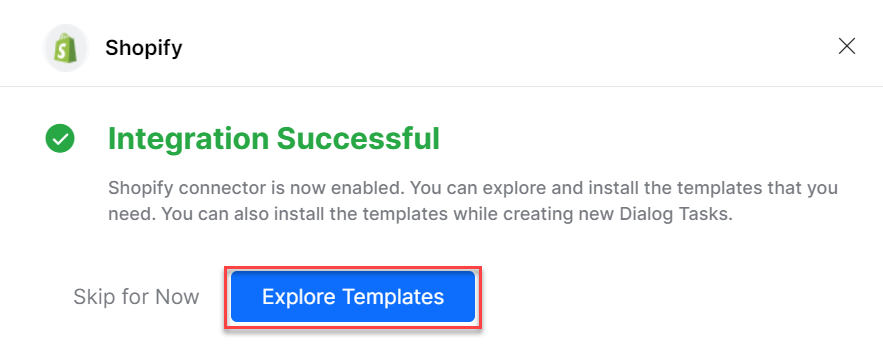
1. On the **Integration Successful** dialog, click **Explore Templates**.
7. Select the new **Authorization Profile**.
8. Click **Enable**.
***
## Step 2: Install the Shopify Action Templates
1. On the **Integration Successful** dialog, click **Explore Templates**.
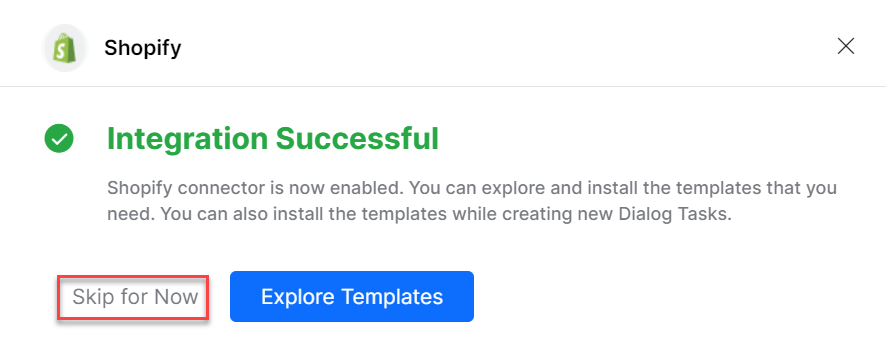
 You can also click **Skip for Now** to install templates later.
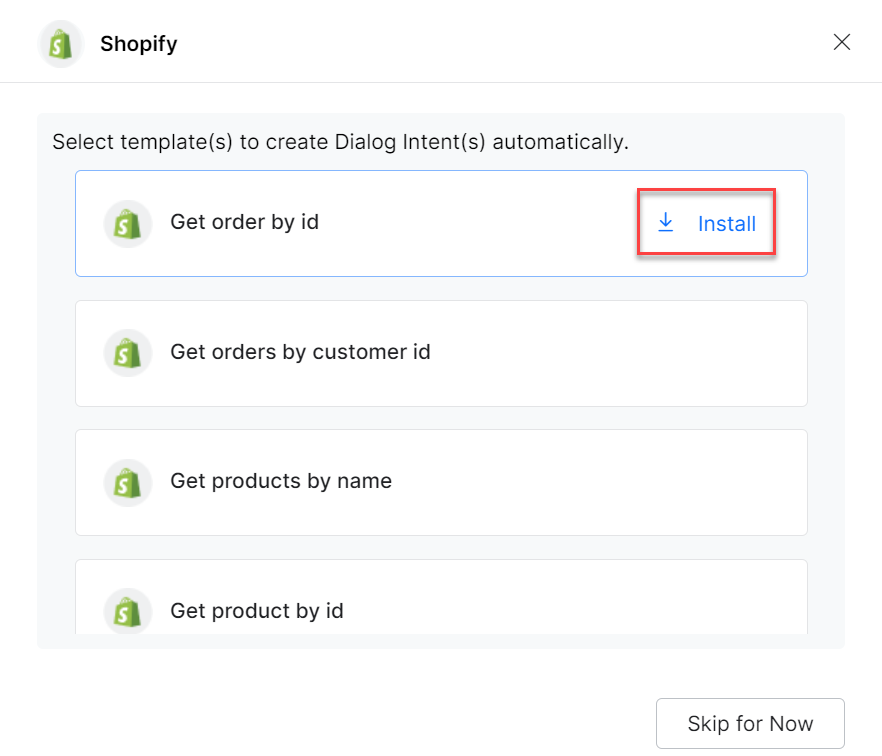
 2. Click **Install** to begin installation.
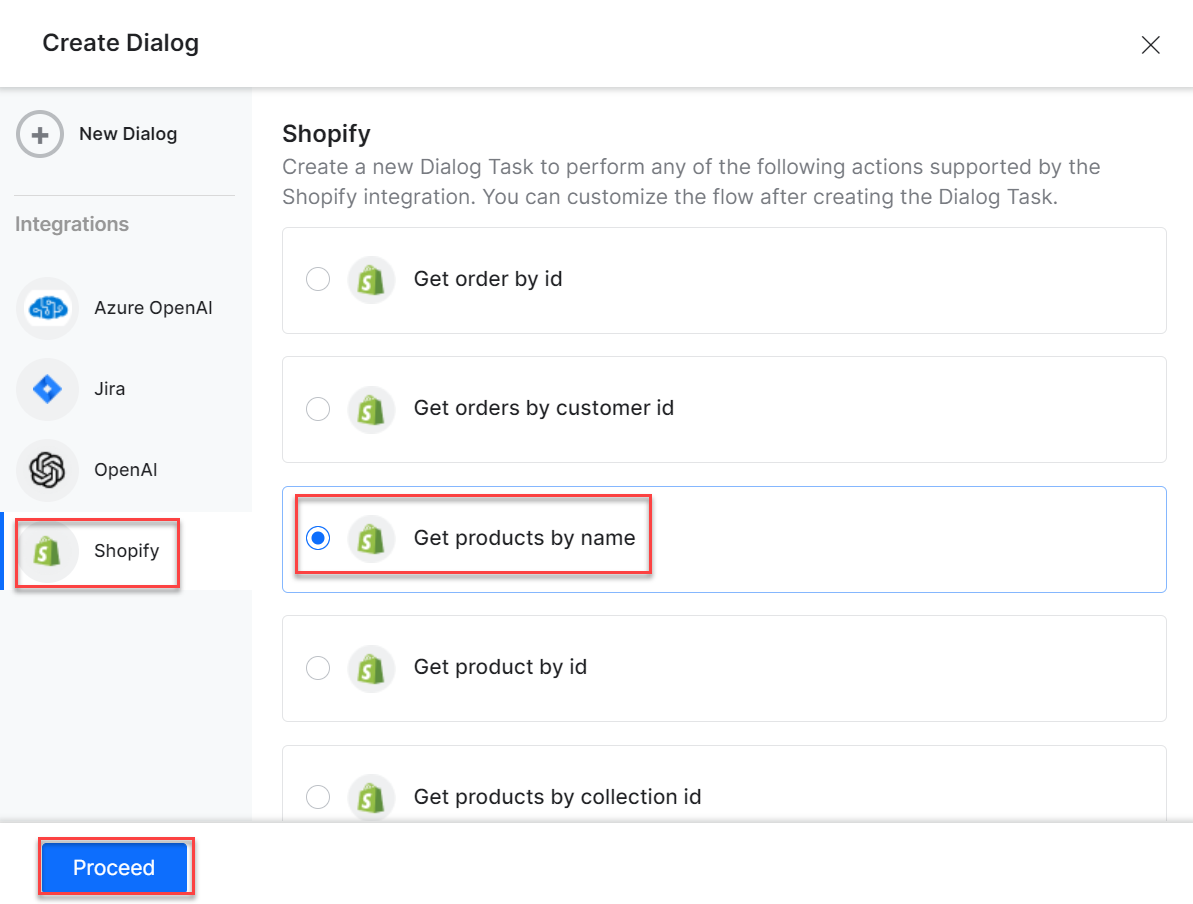
 3. Once installed, click **Go to Dialog**. A dialog task for each template is auto-created.
4. Select the desired dialog task and click **Proceed**.
3. Once installed, click **Go to Dialog**. A dialog task for each template is auto-created.
4. Select the desired dialog task and click **Proceed**.
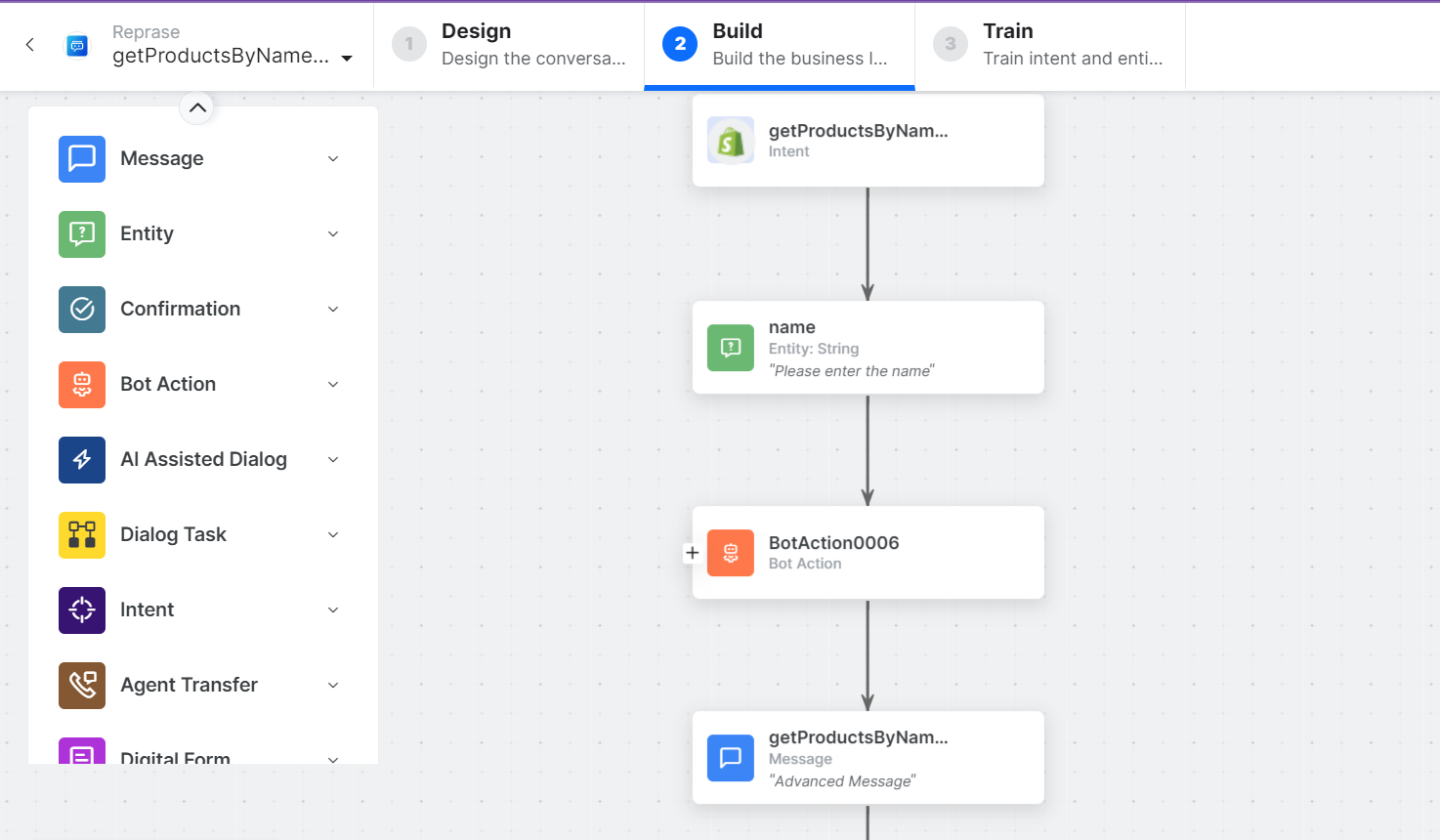
 5. The dialog task is auto-created and the canvas opens with all required entity nodes, service nodes, and message scripts.
 Built with [Mintlify](https://mintlify.com).