> ## Documentation Index
> Fetch the complete documentation index at: https://koreai-ai-for-process-dev.mintlify.app/llms.txt
> Use this file to discover all available pages before exploring further.
# Using the Azure OpenAI Action Templates
[Back to Actions Integrations](/ai-for-service/integrations/overview#actions)
Use prebuilt Azure OpenAI action templates to auto-create dialog tasks.
**Prerequisites:** Configure [Azure OpenAI](configuring-the-azure-openai-action.md) and [install templates](configuring-the-azure-openai-action.md#step-3-install-azure-openai-action-templates) before proceeding.
Navigate to **Automation AI > Use Cases > Dialogs**, then click the auto-created dialog to open the canvas.
***
## Supported Actions
| Action | Description | Method |
| ------------- | ------------------------------------ | ------ |
| General Query | Resolve any query using Azure OpenAI | POST |
***
## General Query
1. Install the template from [Azure OpenAI Templates](configuring-the-azure-openai-action.md#step-3-install-azure-openai-action-templates).
2. The *General Query* dialog task is added with:
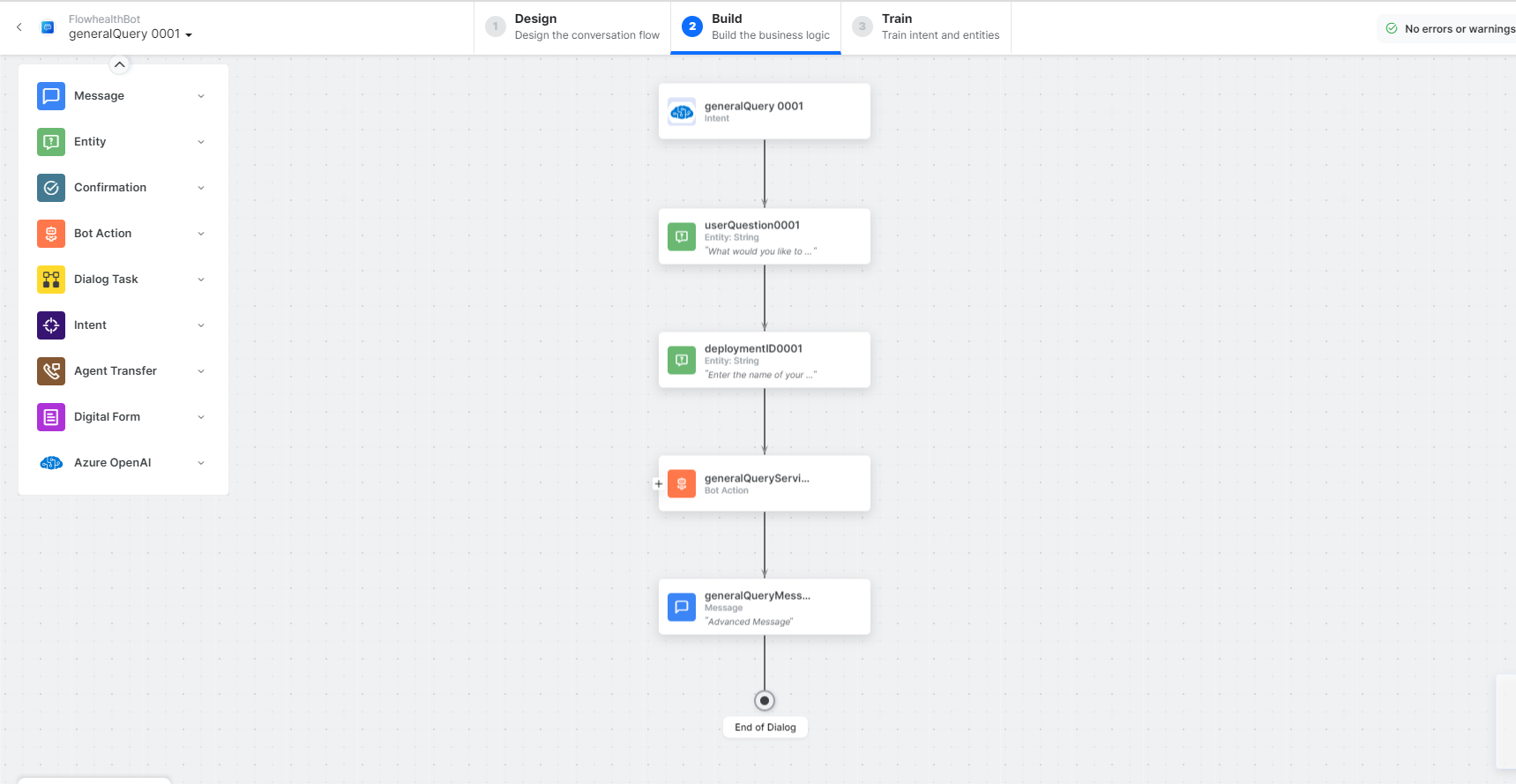 * **generalQuery** - User intent for a general query.
* **userQuestion** and **deploymentID** - Entity nodes to pass the user's question.
* **generalQueryService** - Bot action service to send the query. Click **Edit Request** to modify parameters:
* **generalQuery** - User intent for a general query.
* **userQuestion** and **deploymentID** - Entity nodes to pass the user's question.
* **generalQueryService** - Bot action service to send the query. Click **Edit Request** to modify parameters:
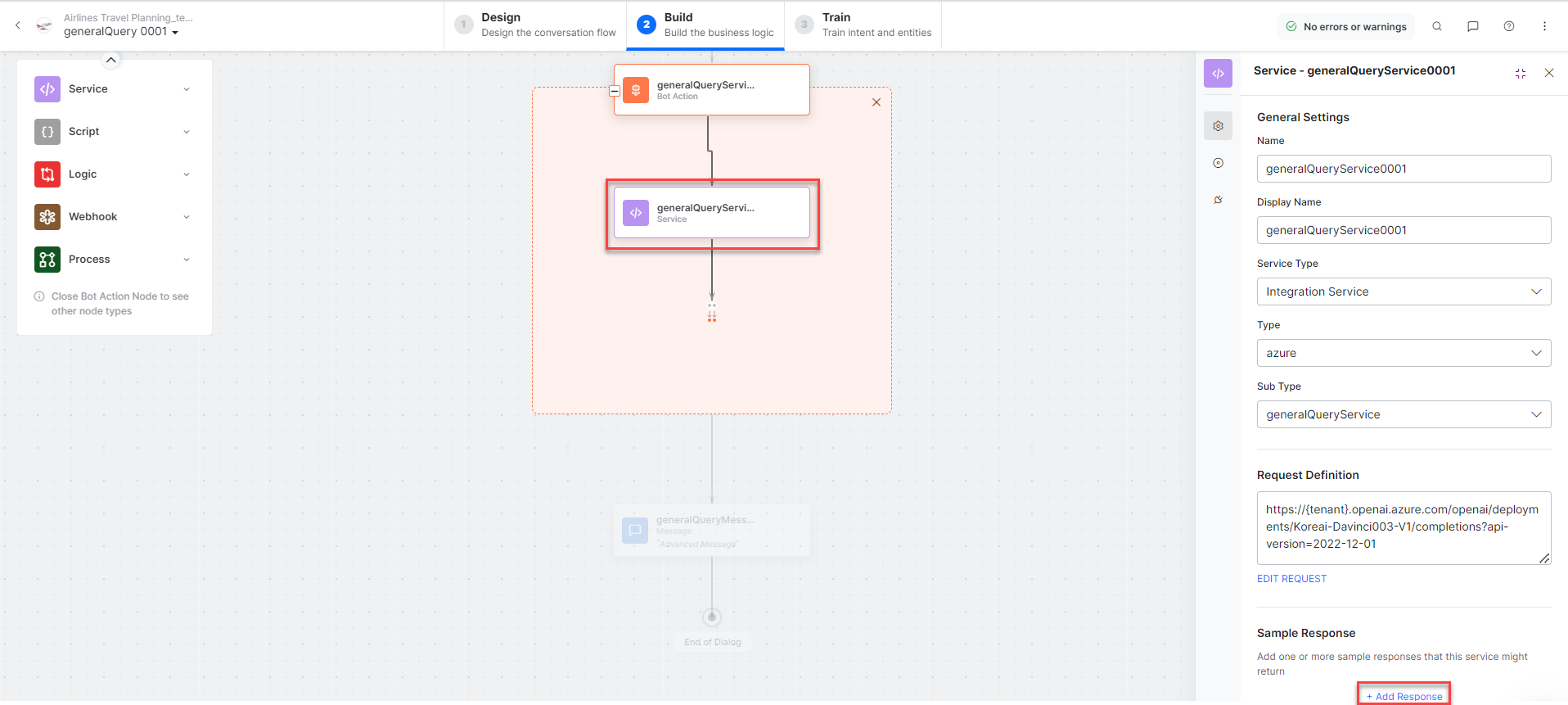 **Sample Request:**
```json theme={null}
{
"prompt": "I am the owner of a SAAS product company. How can i increase my customer base?",
"temperature": 0.25,
"max_tokens": 1024,
"top_p": 1,
"frequency_penalty": 0,
"presence_penalty": 0
}
```
Click **+Add Response** to add sample responses:
**Sample Response:**
```json theme={null}
{
"id": "cmpl-6s8YPFcRGYrDtPys2OdVfxxxxxx",
"object": "text_completion",
"created": 1678360613,
"model": "text-davinci-003",
"choices": [
{
"text": "\n\n1. Focus on creating a great user experience...",
"index": 0,
"logprobs": null,
"finish_reason": "stop"
}
],
"usage": {
"prompt_tokens": 19,
"completion_tokens": 212,
"total_tokens": 231
}
}
```
* **generalQueryMessage** - Message node to display the query response.
3. Click **Train** to complete training.
4. Click **Talk to Bot** to test.
5. Enter a question when prompted.
**Sample Request:**
```json theme={null}
{
"prompt": "I am the owner of a SAAS product company. How can i increase my customer base?",
"temperature": 0.25,
"max_tokens": 1024,
"top_p": 1,
"frequency_penalty": 0,
"presence_penalty": 0
}
```
Click **+Add Response** to add sample responses:
**Sample Response:**
```json theme={null}
{
"id": "cmpl-6s8YPFcRGYrDtPys2OdVfxxxxxx",
"object": "text_completion",
"created": 1678360613,
"model": "text-davinci-003",
"choices": [
{
"text": "\n\n1. Focus on creating a great user experience...",
"index": 0,
"logprobs": null,
"finish_reason": "stop"
}
],
"usage": {
"prompt_tokens": 19,
"completion_tokens": 212,
"total_tokens": 231
}
}
```
* **generalQueryMessage** - Message node to display the query response.
3. Click **Train** to complete training.
4. Click **Talk to Bot** to test.
5. Enter a question when prompted.
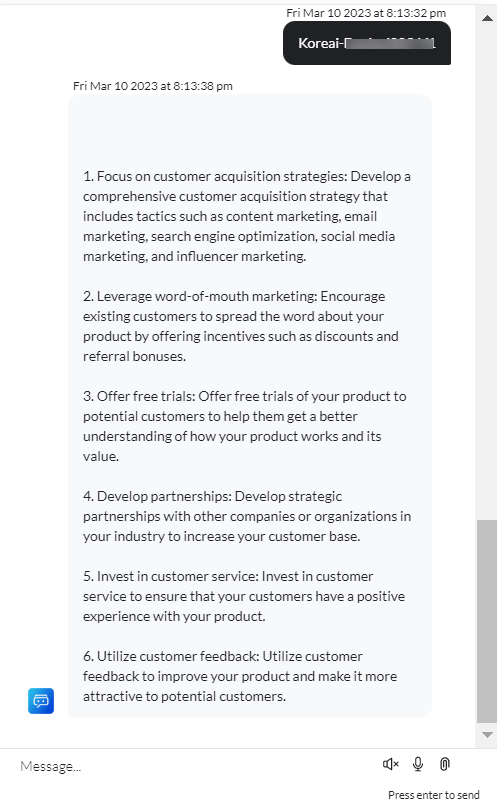
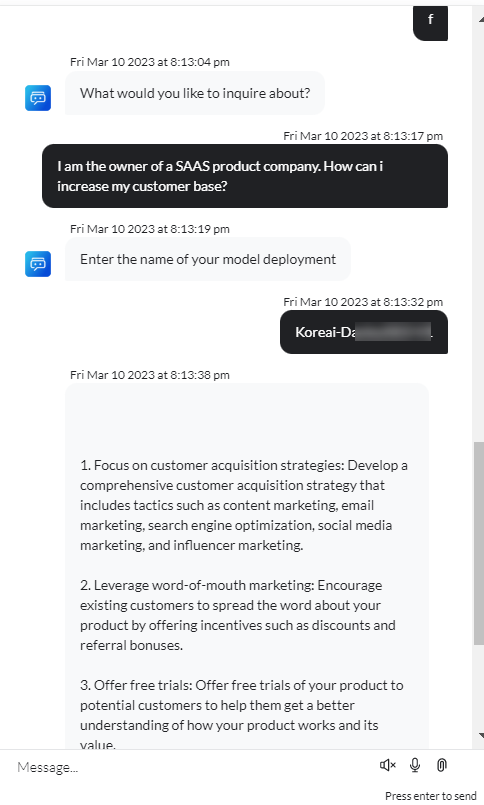 6. An answer is generated for your query.
 Built with [Mintlify](https://mintlify.com).