> ## Documentation Index
> Fetch the complete documentation index at: https://koreai-ai-for-process-dev.mintlify.app/llms.txt
> Use this file to discover all available pages before exploring further.
# Message Prompt Node
Use this node to send automated messages to customers via voice or chat.
## Configure the Node
### General Settings
In **General Settings**, configure the following:
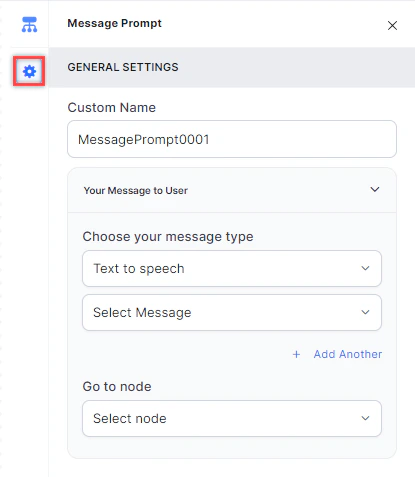 1. **Custom Name**: Enter a name to identify the node.
2. **Your Message to User**: Select a message type under **Choose your message type**:
* **Text to Speech**: Type or select a message to convert to speech. Click **+ Create New** to add a new prompt, or **+ Add Another** to define multiple messages (one is randomly selected at runtime).
1. **Custom Name**: Enter a name to identify the node.
2. **Your Message to User**: Select a message type under **Choose your message type**:
* **Text to Speech**: Type or select a message to convert to speech. Click **+ Create New** to add a new prompt, or **+ Add Another** to define multiple messages (one is randomly selected at runtime).
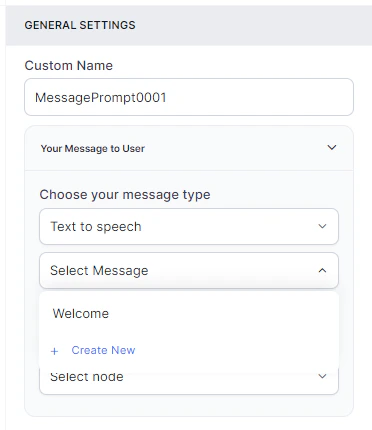 * **Audio File**: Type a message or click **+ Upload New** to upload an .mp3 or .wav file.
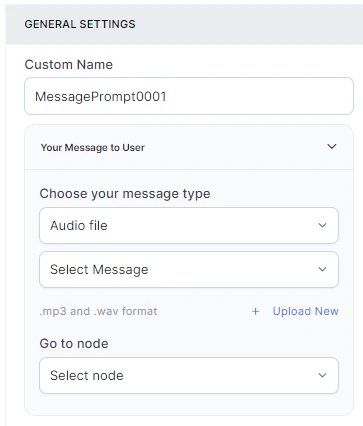 * **Link**: Click **+ Create New** to add message text and an audio file URL (.mp3 or .wav). Click **+ Add Another** for additional URLs.
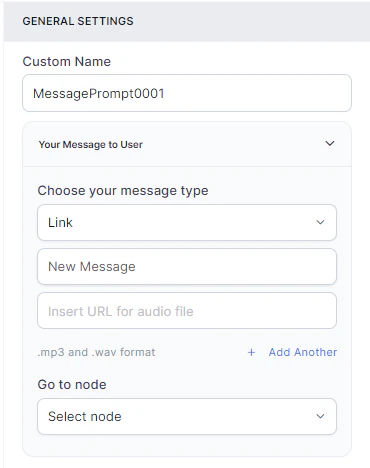 * **Go to node**: Select the node for error handling. You can create a new node or select an existing one.
### Pass Data from Experience Flow to Dialog in a Child Bot
You can use a script to read data from an experience flow and pass it to a dialog in a child bot. The script node sets a variable from the current user session and stores it using `userSessionUtils`. [Learn more](/ai-for-service/flows/node-types/utils#pass-data-from-experience-flow-to-dialog-in-a-child-bot).
Built with [Mintlify](https://mintlify.com).
* **Go to node**: Select the node for error handling. You can create a new node or select an existing one.
### Pass Data from Experience Flow to Dialog in a Child Bot
You can use a script to read data from an experience flow and pass it to a dialog in a child bot. The script node sets a variable from the current user session and stores it using `userSessionUtils`. [Learn more](/ai-for-service/flows/node-types/utils#pass-data-from-experience-flow-to-dialog-in-a-child-bot).
Built with [Mintlify](https://mintlify.com).