> ## Documentation Index
> Fetch the complete documentation index at: https://koreai-ai-for-process-dev.mintlify.app/llms.txt
> Use this file to discover all available pages before exploring further.
# Multiple Phone Numbers Support in the WhatsApp Channel
The platform now supports AI Agent responses via WhatsApp to the incoming messages for **Infobip** from multiple phone numbers. The AI Agent responds only to all the relevant source phone numbers rather than a universal number.
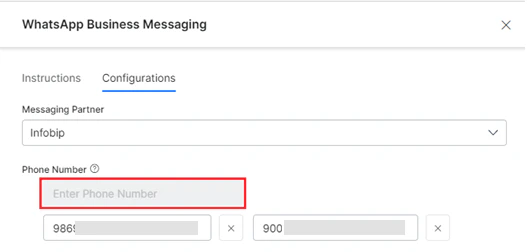
The user can add a **maximum of 20 phone numbers** to the list after which the Phone Number input field is disabled.
 * The user can remove/delete a phone number from the configured list to stop receiving messages.
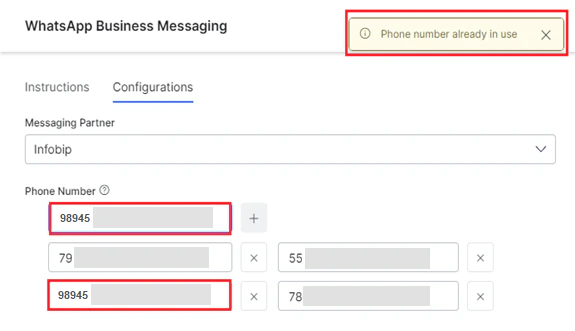
* An alert message is displayed when you add a phone number that is already in use (configured on the Platform) as shown below:
* The user can remove/delete a phone number from the configured list to stop receiving messages.
* An alert message is displayed when you add a phone number that is already in use (configured on the Platform) as shown below:
 ## Adding a Phone Number
To add a new phone number on the Kore.ai Platform to message via WhatsApp for Infobip, follow the steps below:
1. Navigate to **Channels & Flows** > **Channels** > **Digital** > **All** > **WhatsApp Business Messaging** > **Configurations**.
2. Select **Infobip** from the **Messaging Partner** dropdown list.
3. Click the **Add** icon for the **Phone Number** field.
## Adding a Phone Number
To add a new phone number on the Kore.ai Platform to message via WhatsApp for Infobip, follow the steps below:
1. Navigate to **Channels & Flows** > **Channels** > **Digital** > **All** > **WhatsApp Business Messaging** > **Configurations**.
2. Select **Infobip** from the **Messaging Partner** dropdown list.
3. Click the **Add** icon for the **Phone Number** field.
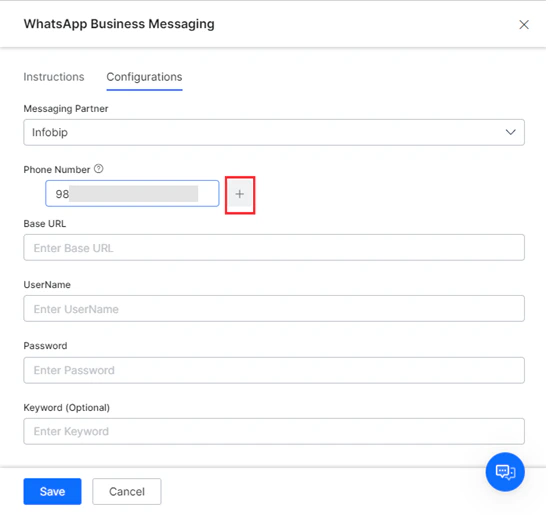 4. Type a valid phone number and press enter to confirm.
5. Click **Save** to complete the configuration.
6. Follow steps 3 to 5 to add up to 20 phone numbers.
## Deleting a Phone Number
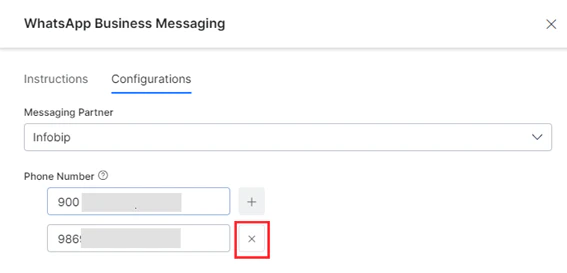
To delete a phone number, click the **Delete** icon next to the phone number.
4. Type a valid phone number and press enter to confirm.
5. Click **Save** to complete the configuration.
6. Follow steps 3 to 5 to add up to 20 phone numbers.
## Deleting a Phone Number
To delete a phone number, click the **Delete** icon next to the phone number.
 ## Responding to an Incoming Number
The Kore.ai XO Platform validates the incoming number by checking if it’s present in the configured list. Only when present will the platform respond and deliver the message. Otherwise, the platform fails to deliver the message to Infobip, triggers an exception, and logs the information under the **NLP Insights** > **Debug Log** section. [Learn more](../analytics/automation/nlp-insights.md).
Built with [Mintlify](https://mintlify.com).
## Responding to an Incoming Number
The Kore.ai XO Platform validates the incoming number by checking if it’s present in the configured list. Only when present will the platform respond and deliver the message. Otherwise, the platform fails to deliver the message to Infobip, triggers an exception, and logs the information under the **NLP Insights** > **Debug Log** section. [Learn more](../analytics/automation/nlp-insights.md).
Built with [Mintlify](https://mintlify.com).