> ## Documentation Index
> Fetch the complete documentation index at: https://koreai-ai-for-process-dev.mintlify.app/llms.txt
> Use this file to discover all available pages before exploring further.
# Adding the Twilio SMS Channel
[Back to Available Channels](/ai-for-service/channels/adding-channels-to-your-bot#available-channels)
To add Twilio SMS as a channel, set up a messaging service in Twilio to manage message delivery and routing. Once the bot is added, end-users can interact with your bot through text messages.
Pursue the following steps to add a Twilio SMS channel:
1. Create a Twilio account and get the Phone Number.
2. Create a Twilio messaging service.
## Create a Twilio Account
1. Use the [https://www.twilio.com/try-twilio](https://www.twilio.com/try-twilio) to sign up and create a free *Twilio* trial account.
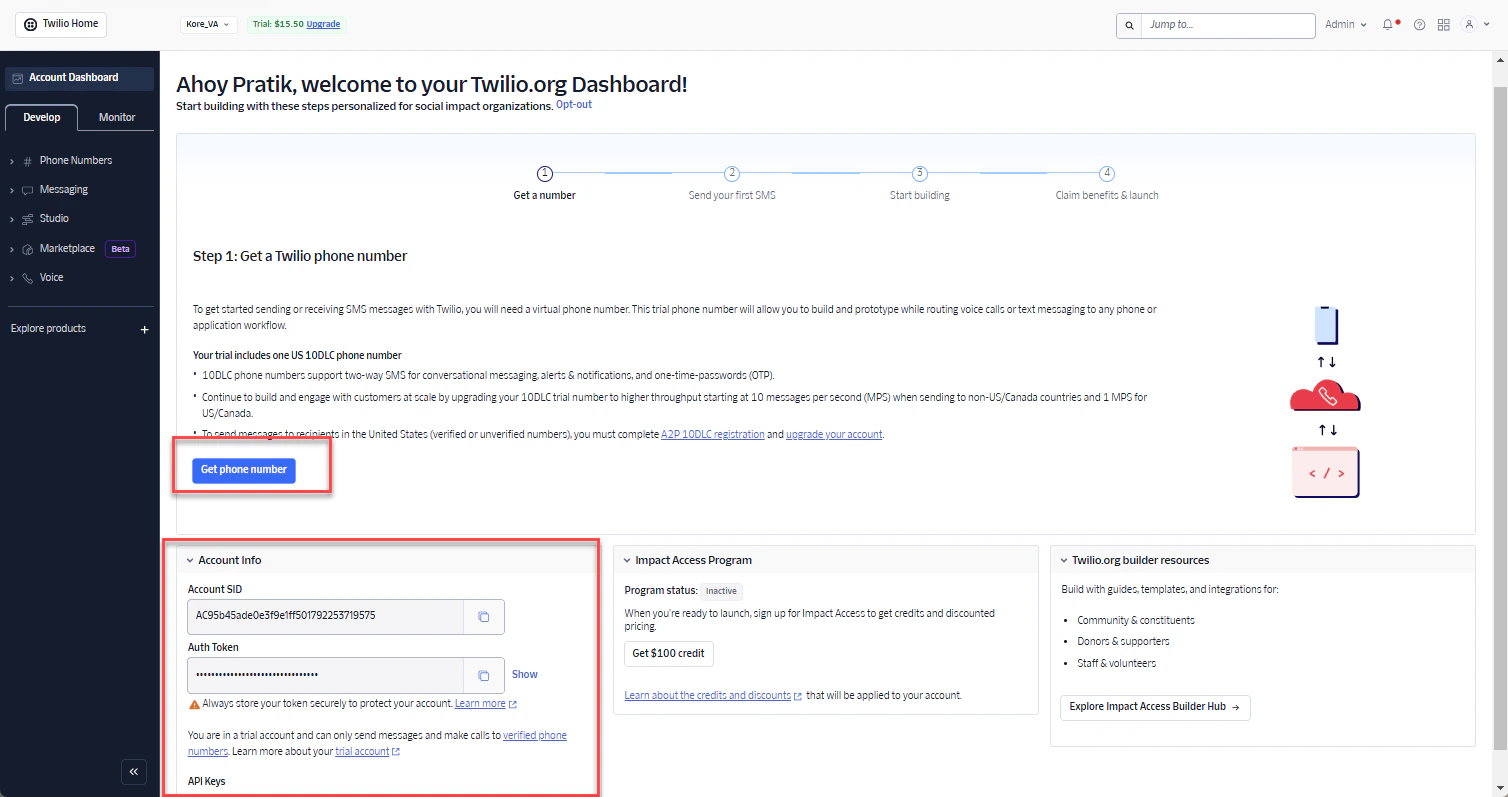
2. The Twilio **Account Dashboard** page is displayed. On the Account Dashboard page, click **Get phone number**.
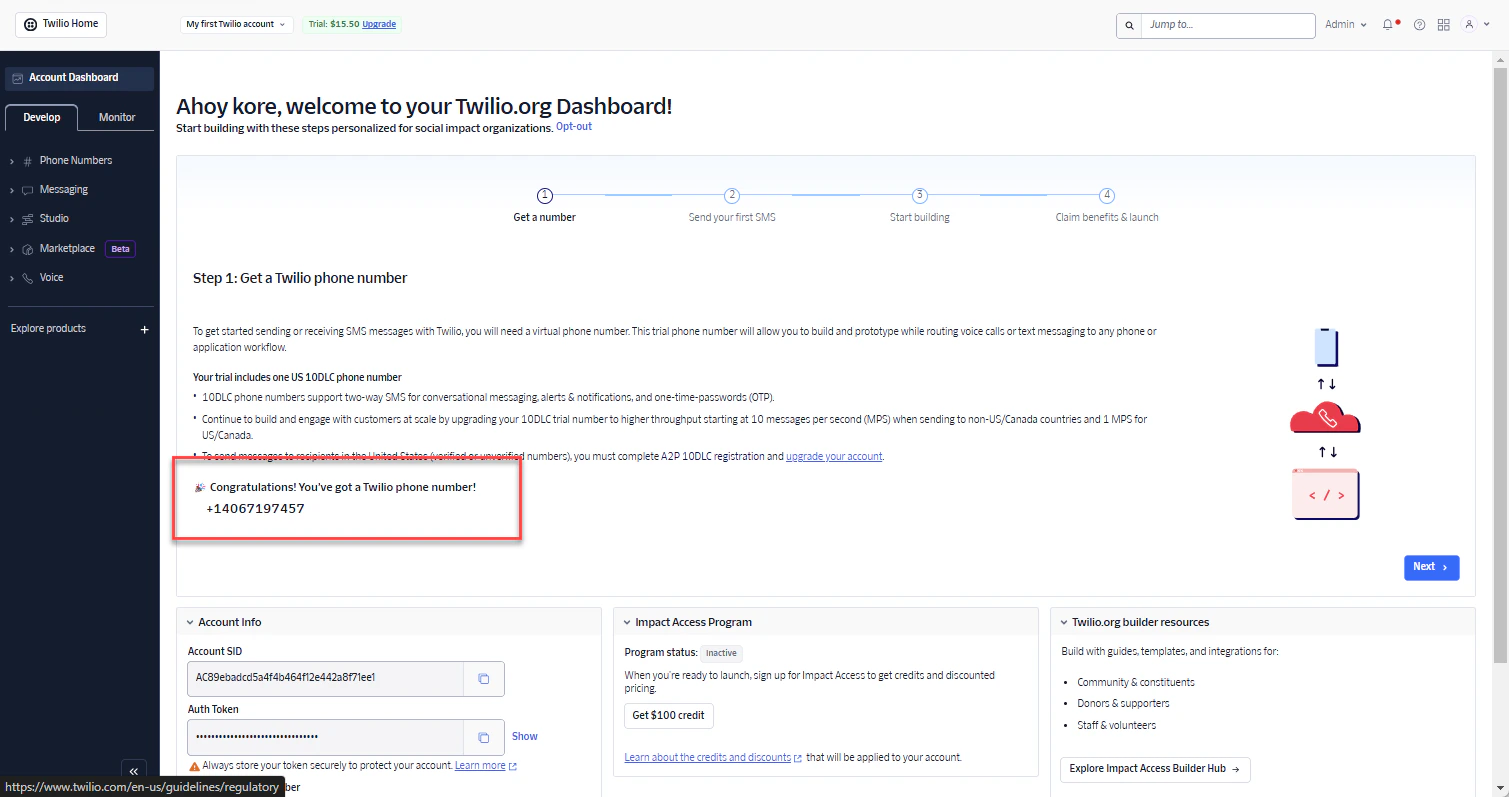
 3. Your Twilio Phone Number is displayed.
 ## Create a Twilio Messaging Service
This procedure requires an active *Twilio* account access. For more information, refer to *Create a Twilio Account*.
To add the Twilio Channel, pursue the following steps:
1. Login to XO Platform and navigate to **Flows & Channels** > **Digital** > **Twilio SMS** > **Configuration** tab.
2. [Login](https://www.twilio.com/) to the Twilio portal.
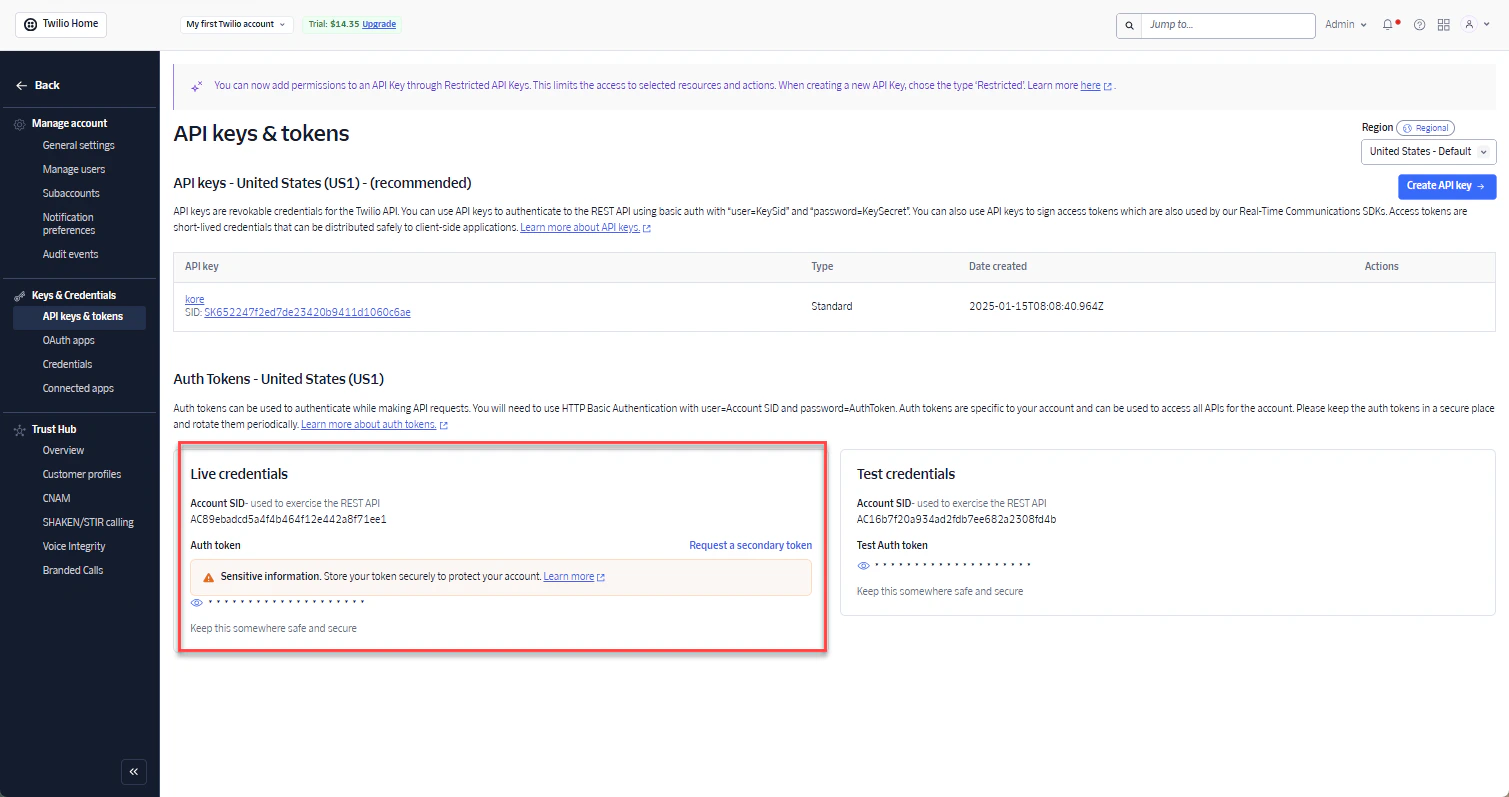
3. Under the Admin dropdown menu at the top right, select **Account Management** and then in the left-hand menu, under Keys & Credentials, click **API Keys & Tokens**.
4. Create your API credentials if you have not already set up your account.
5. Copy your **Account SID** and **Auth Token** and enter in the **Configurations** tab of the Twilio channel page.
## Create a Twilio Messaging Service
This procedure requires an active *Twilio* account access. For more information, refer to *Create a Twilio Account*.
To add the Twilio Channel, pursue the following steps:
1. Login to XO Platform and navigate to **Flows & Channels** > **Digital** > **Twilio SMS** > **Configuration** tab.
2. [Login](https://www.twilio.com/) to the Twilio portal.
3. Under the Admin dropdown menu at the top right, select **Account Management** and then in the left-hand menu, under Keys & Credentials, click **API Keys & Tokens**.
4. Create your API credentials if you have not already set up your account.
5. Copy your **Account SID** and **Auth Token** and enter in the **Configurations** tab of the Twilio channel page.
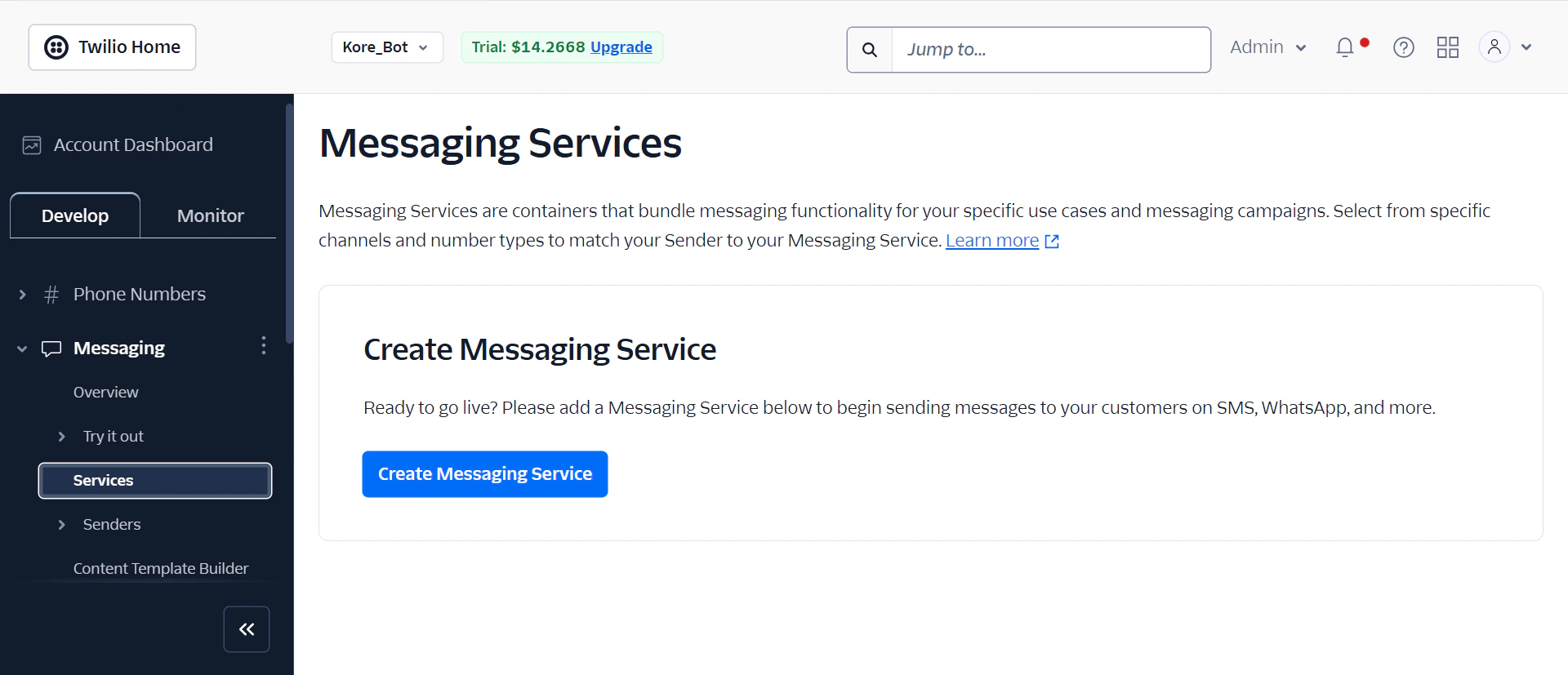
 6. Go to **Account Dashboard > Develop > Messaging > Services** and click **Create Messaging Service**. The messaging service setup page is displayed.
 7. Enter the **messaging service name**, select the one of the messaging service from the dropdown list and click **Create Messaging Service**.
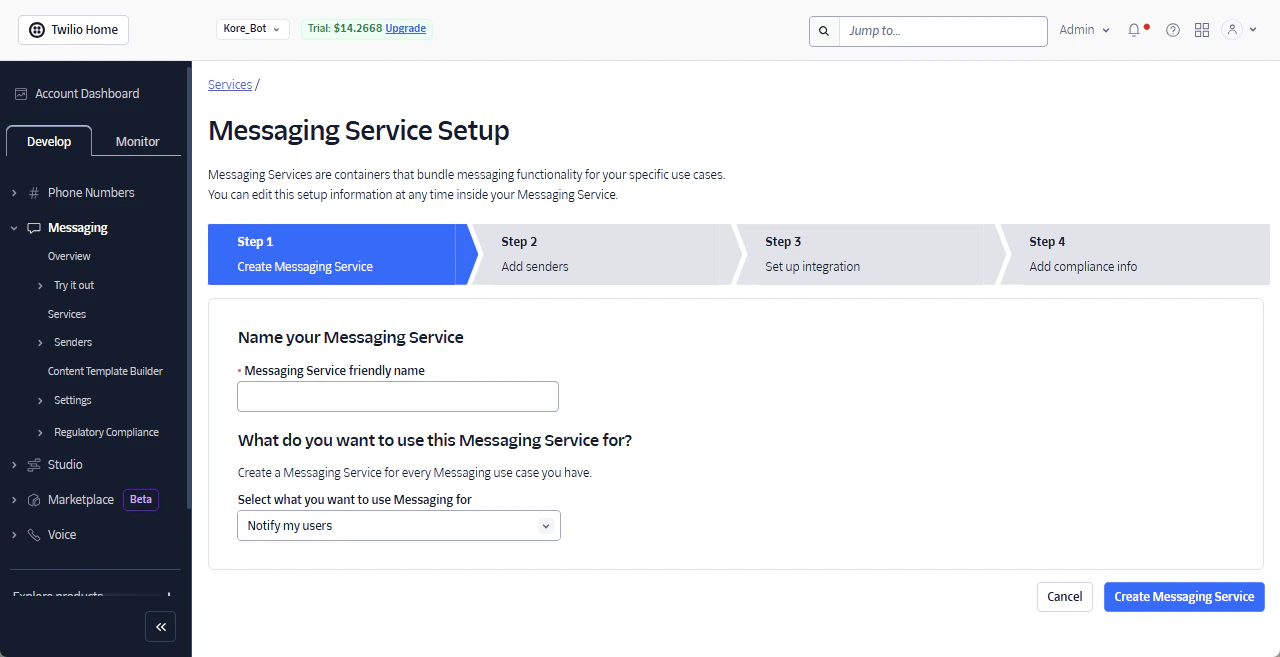 8. Click **Add Senders** and follow the steps.
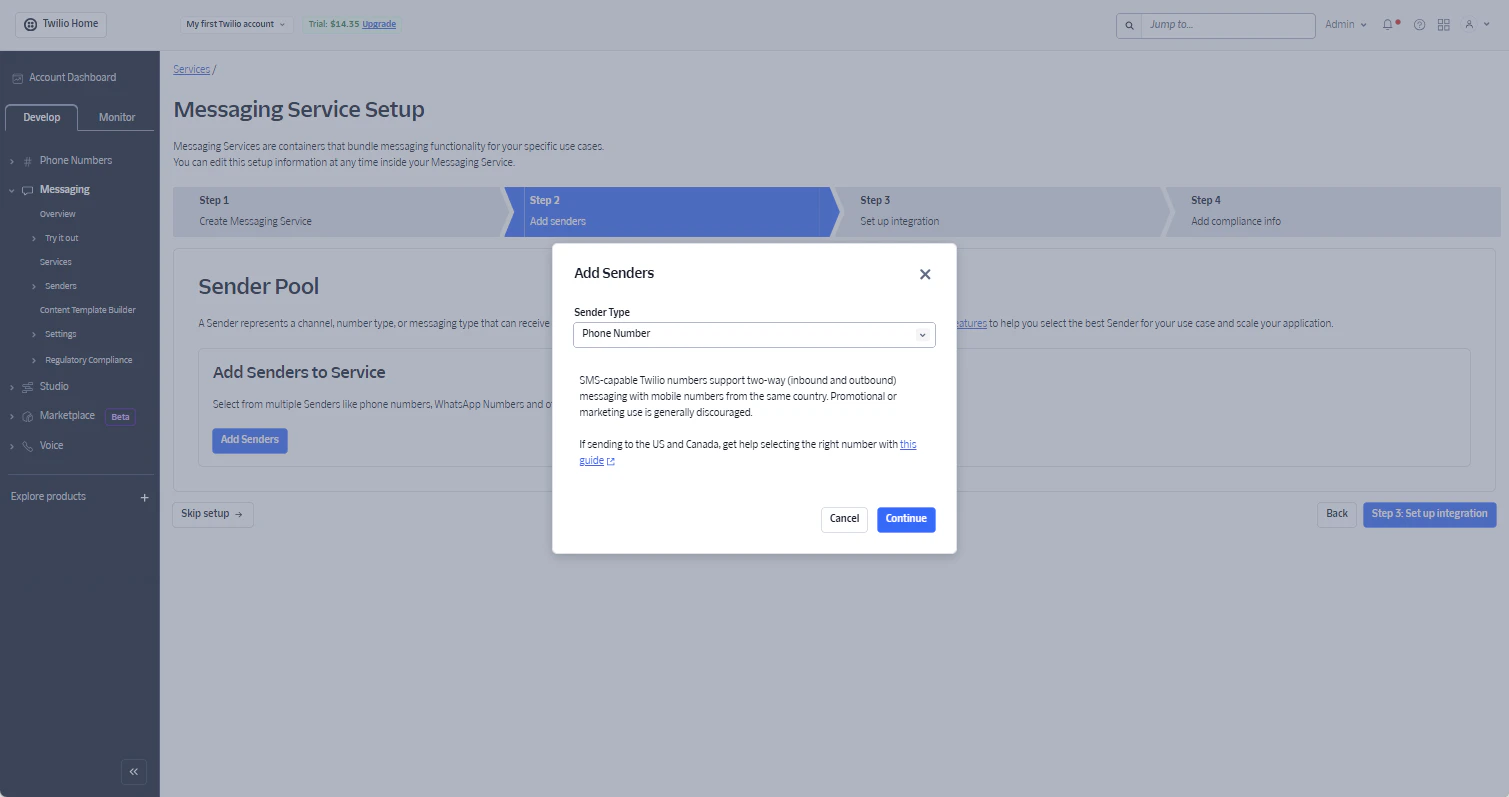
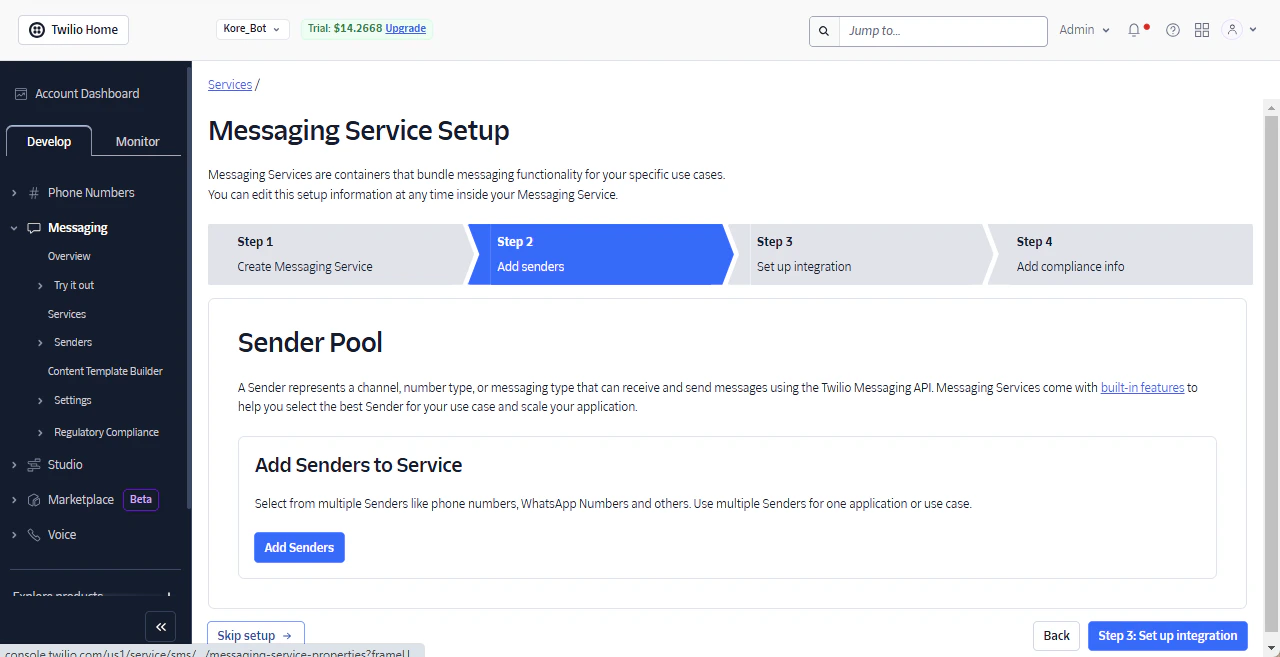 9. From the Add Senders pop-up, select **Phone Number** from the dropdown list and click **Continue**.
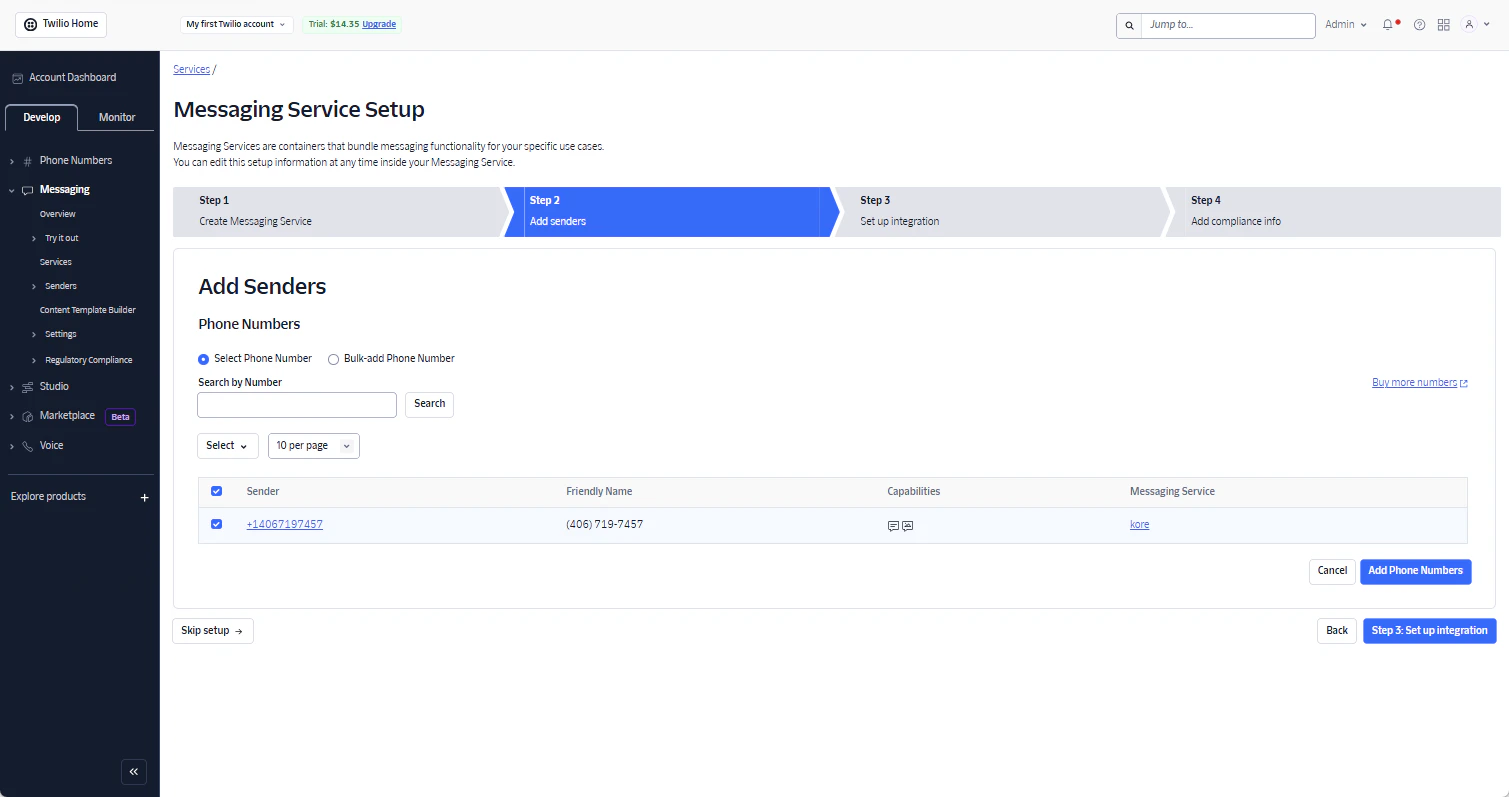
 10. Select the **Select Phone Number** radio button and click **Step 3: Set up integration**.
 11. On the integration page, select **Send a Webhook**. Then, select the **Request URL**, **Fallback URL**, and **Status** **Callback URL** fields from the XO Platform Twilio SMS **Configurations** tab and enter them.
 The callback URL includes the **streamId** in the API request to identify the AI Agent being accessed. When an incoming request is qualified with this identifier, it helps with traceability, troubleshooting, and remediation at the network level during anomalies like malicious calls or unusual bot activity.
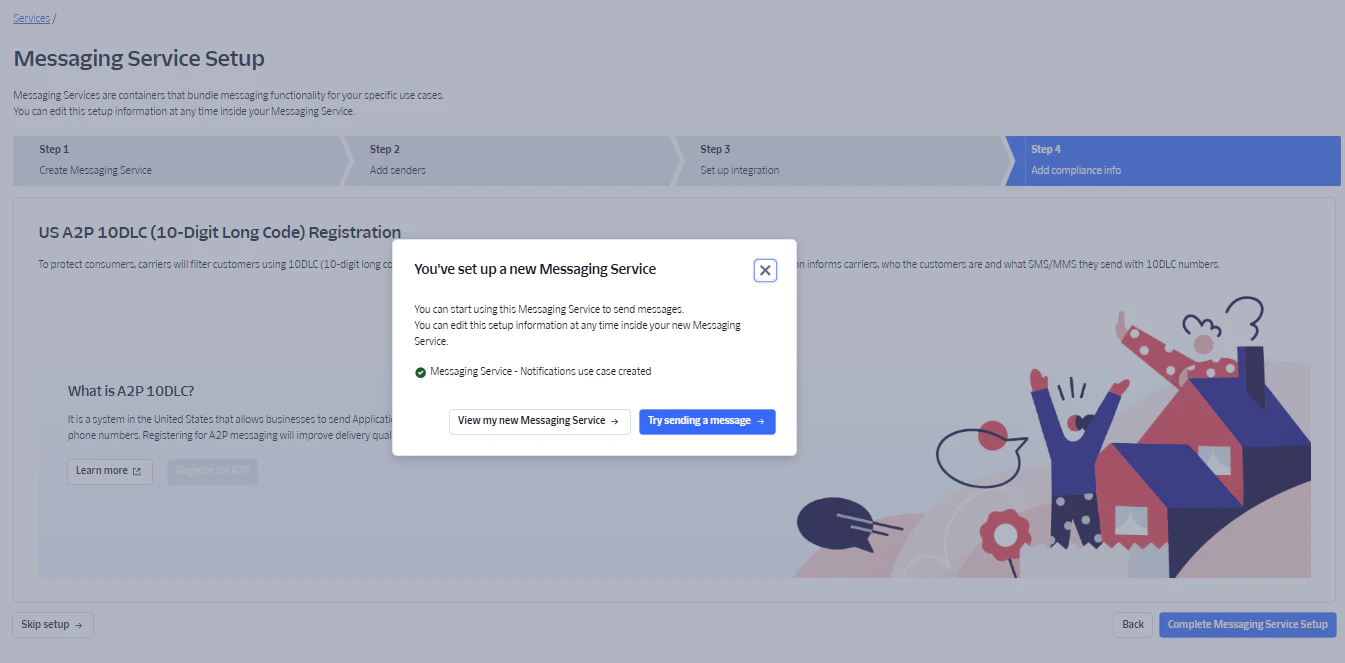
12. Click **Step 4: Add compliance info**. The success message is displayed and then, click **Complete Messaging Service Setup**.
The callback URL includes the **streamId** in the API request to identify the AI Agent being accessed. When an incoming request is qualified with this identifier, it helps with traceability, troubleshooting, and remediation at the network level during anomalies like malicious calls or unusual bot activity.
12. Click **Step 4: Add compliance info**. The success message is displayed and then, click **Complete Messaging Service Setup**.
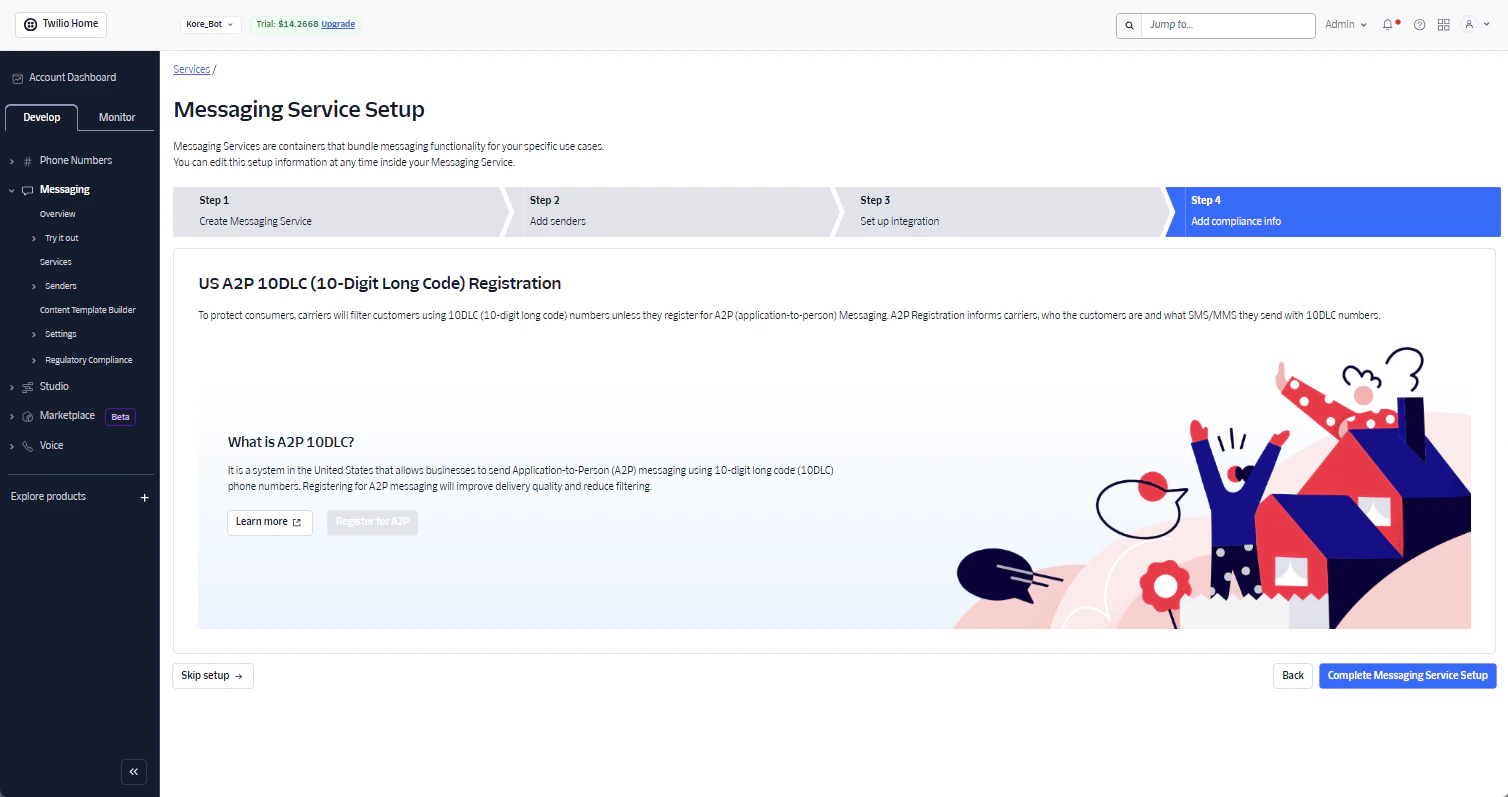 13. The setup complete pop-up appears. Click **View my new Messaging Service**.
 14. Copy the **Messaging Service SID** and click **Save**.
15. On the Twilio Configuration tab, paste the **Messaging Service SID** and click **Save**. The configuration saved message is displayed.
**Related Link**
[How do I include an Image in an Outbound Twilio SMS (MMS)?](../kb/how-do-i-include-an-image-in-an-outbound-twilio-sms-mms.md)
Built with [Mintlify](https://mintlify.com).
14. Copy the **Messaging Service SID** and click **Save**.
15. On the Twilio Configuration tab, paste the **Messaging Service SID** and click **Save**. The configuration saved message is displayed.
**Related Link**
[How do I include an Image in an Outbound Twilio SMS (MMS)?](../kb/how-do-i-include-an-image-in-an-outbound-twilio-sms-mms.md)
Built with [Mintlify](https://mintlify.com).