> ## Documentation Index
> Fetch the complete documentation index at: https://koreai-ai-for-process-dev.mintlify.app/llms.txt
> Use this file to discover all available pages before exploring further.
# Third Party Configuration
Third Party Configuration lets you manage app configuration parameters — such as `QueueIdentifier` and custom data — within an embedded Agent AI app. This enables dynamic iframe URL generation for third-party CCaaS/CRM platforms, eliminating the need for separate configuration on the third-party desktop.
***
## Configure a Third Party Integration
1. Sign in to **Agent AI**.
2. Go to **Configuration** > **System Setup** > **Third Party Configuration**.
3. Select **+ New Record**.
 4. Enter the record details:
| Field | Description |
| -------------------- | ------------------------------------------------------------------------------------------------------ |
| **Name** | Name of the record. |
| **Description** | A brief description of the record. |
| **Queue Identifier** | Queue or skill name. Enter multiple values by pressing **Enter**. Must be unique at the account level. |
The Queue Identifier value must be unique at the account level and is a string.
4. Enter the record details:
| Field | Description |
| -------------------- | ------------------------------------------------------------------------------------------------------ |
| **Name** | Name of the record. |
| **Description** | A brief description of the record. |
| **Queue Identifier** | Queue or skill name. Enter multiple values by pressing **Enter**. Must be unique at the account level. |
The Queue Identifier value must be unique at the account level and is a string.
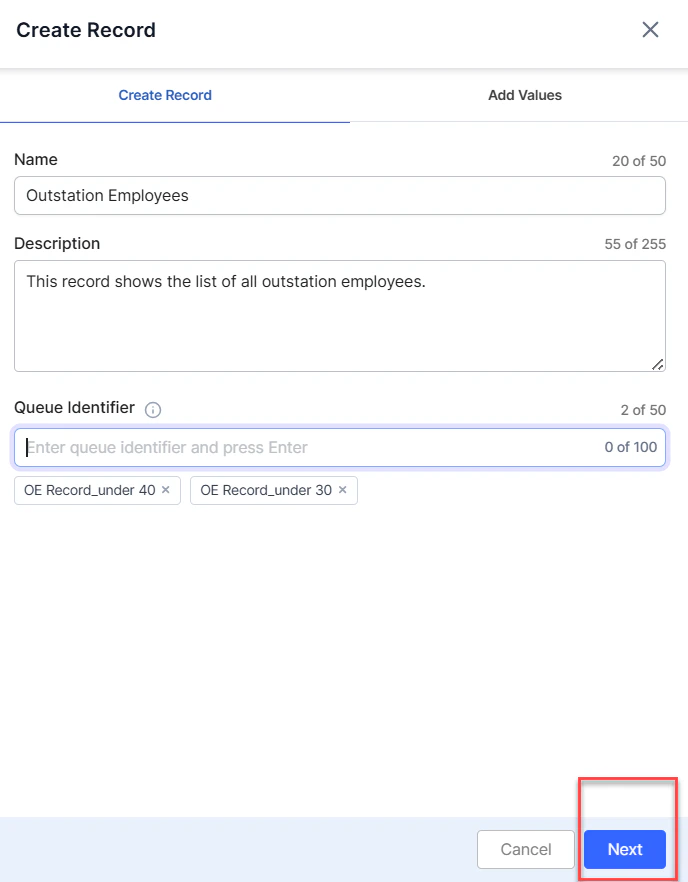 5. Select **Next**.
6. Select **+ New Value Pair** to define key-value pairs.
7. Select a key from the **Key** list and enter its value in the **Value** field. Add more pairs by selecting **+ New Value Pair**. To delete a key, select the delete button next to it.
5. Select **Next**.
6. Select **+ New Value Pair** to define key-value pairs.
7. Select a key from the **Key** list and enter its value in the **Value** field. Add more pairs by selecting **+ New Value Pair**. To delete a key, select the delete button next to it.
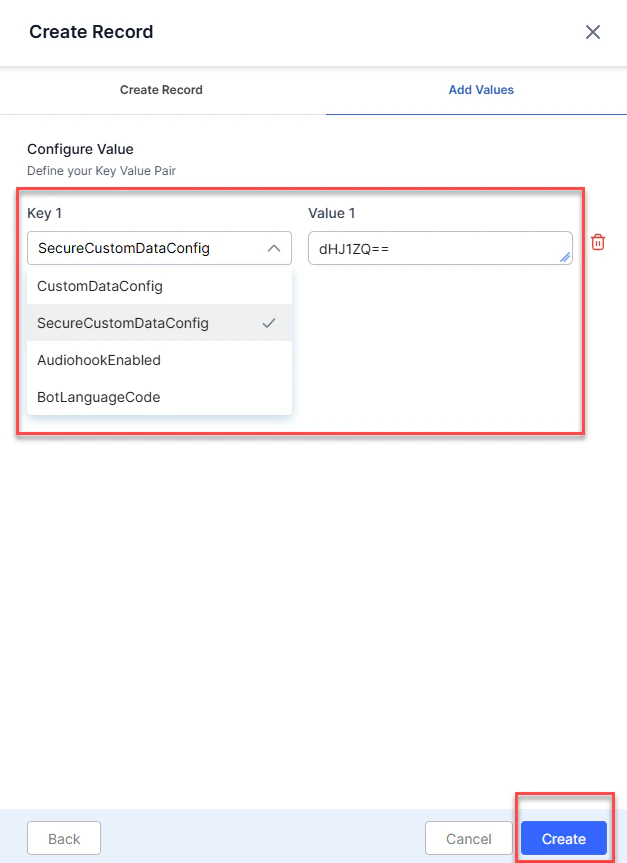 8. Select **Create**.
### Field Reference — Configure Value
| Field | Description |
| -------------------------- | --------------------------------------------------------------------------------------------------------------------------------------------------------------------- |
| **CustomDataConfig** | JSON object with keys and xpath paths to values in the Genesys Conversation API result. Passed to the Agent AI widget at runtime and available in the context object. |
| **SecureCustomDataConfig** | JSON object with keys and xpath paths to values in the Genesys Conversation API result. Securely passed to the widget at runtime. |
| **AudiohookEnabled** | Boolean flag indicating whether Kore audio processing is enabled. Specific to Genesys desktop. |
| **AppLanguageCode** | Specifies the language and locale the app uses during interaction. |
| **Value** | Values must be **base64** encoded. |
***
## Edit or Delete a Record
1. Sign in to **Agent AI**.
2. Go to **Configuration** > **System Setup** > **Third Party Configuration**.
3. Select the vertical ellipsis on the record you want to modify.
8. Select **Create**.
### Field Reference — Configure Value
| Field | Description |
| -------------------------- | --------------------------------------------------------------------------------------------------------------------------------------------------------------------- |
| **CustomDataConfig** | JSON object with keys and xpath paths to values in the Genesys Conversation API result. Passed to the Agent AI widget at runtime and available in the context object. |
| **SecureCustomDataConfig** | JSON object with keys and xpath paths to values in the Genesys Conversation API result. Securely passed to the widget at runtime. |
| **AudiohookEnabled** | Boolean flag indicating whether Kore audio processing is enabled. Specific to Genesys desktop. |
| **AppLanguageCode** | Specifies the language and locale the app uses during interaction. |
| **Value** | Values must be **base64** encoded. |
***
## Edit or Delete a Record
1. Sign in to **Agent AI**.
2. Go to **Configuration** > **System Setup** > **Third Party Configuration**.
3. Select the vertical ellipsis on the record you want to modify.
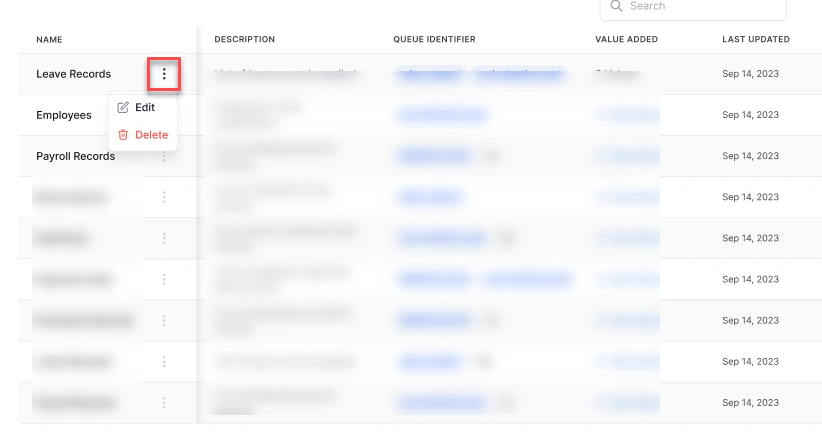 * **Edit** — make updates and select **Update**.
* **Delete** — a confirmation message appears.
* **Edit** — make updates and select **Update**.
* **Delete** — a confirmation message appears.
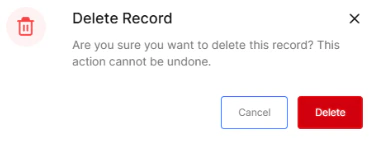 4. Select **Delete** to confirm deletion.
***
Built with [Mintlify](https://mintlify.com).
4. Select **Delete** to confirm deletion.
***
Built with [Mintlify](https://mintlify.com).